> ## Documentation Index
> Fetch the complete documentation index at: https://docs.nekt.com/llms.txt
> Use this file to discover all available pages before exploring further.

# Catalog

> Get an overview of all your data in one single place, and learn how to structure it.

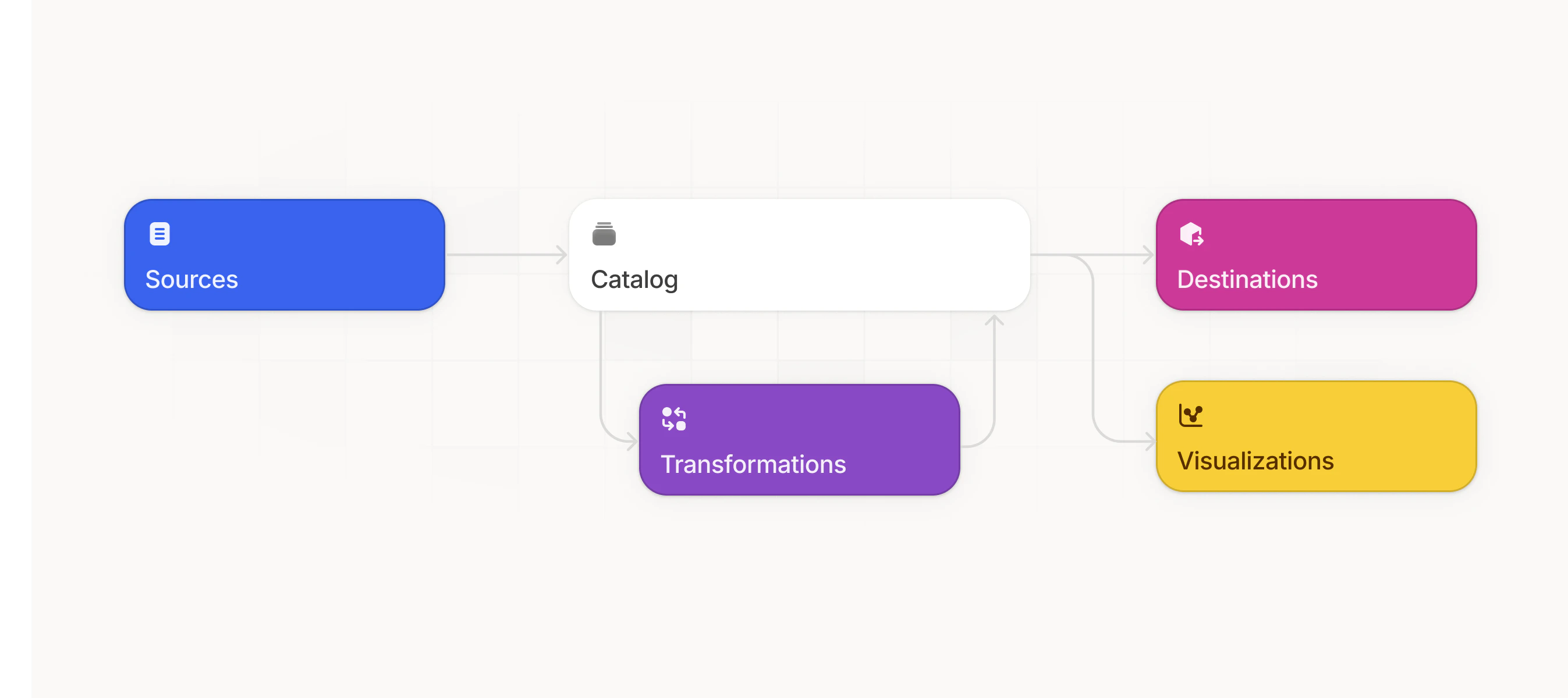
The Catalog is where you will find all your data. Every extracted table ends up stored there, Queries and Notebooks use data from it as input and store their output tables there, and Destinations and Integrations consume data from it. It's the core of everything.

<img height="50" src="https://mintcdn.com/nekt/tfHZoJTFzKtP-GEH/assets/catalog-overview.png?fit=max&auto=format&n=tfHZoJTFzKtP-GEH&q=85&s=eaf2d4f09ded243cf01f5c5e15174b39" data-path="assets/catalog-overview.png" />

<video src="https://public.nekt.ai/videos/catalog_overview.mp4" autoPlay muted loop playsInline preload="auto" className="w-full" />

As soon as you configure a source, you'll see its tables in the Catalog, although they might be empty. That's expected and only means the tables are ready to receive data. Once the source has a successful run (triggered manually or on its schedule), the tables fill with your data.

## How data flows through the Catalog

* **Sources** write tables to the Catalog as data is extracted.
* **Queries** and **Notebooks** read tables from it and write their outputs back.
* **History** tracks changes to tables over time.
* **Destinations** and **Integrations** consume tables from it to deliver value.

The Catalog gives you an overview of all your data and the control that comes from having everything in a single place.

## The hierarchy

Data in the Catalog is organized into a simple hierarchy. Each building block has its own page:

<CardGroup cols={3}>
  <Card title="Layers" icon="layer-group" href="/catalog/layers">
    The top-level storage and permission boundary, such as Bronze, Silver, and Gold.
  </Card>

  <Card title="Folders" icon="folder" href="/catalog/folders">
    Organization inside a Layer, grouping tables by source, domain, or project.
  </Card>

  <Card title="Tables" icon="table" href="/catalog/tables">
    The datasets created by Sources, Queries, Notebooks, and History.
  </Card>
</CardGroup>

A Layer contains Folders and Tables; a Folder can contain more Folders and Tables. The Catalog also stores [Volumes](/catalog/volumes) for non-tabular files and [External tables](/catalog/external-tables) that reference data in place without copying it.

## Organize your Catalog

A clear structure makes data easier to find, protects access boundaries, and gives people and AI agents better context. Define the first version before connecting production sources, then evolve it as real use cases appear.

<Warning>
  Choose the top-level structure carefully. Moving tables later can require updates to permissions, Queries, Notebooks, Destinations, and context documents that reference their paths.
</Warning>

For how to pick a Layer model (by processing stage, by client, or both) and how to name tables so people and agents understand them, see [Layers](/catalog/layers) and [Tables](/catalog/tables).

### Start with the minimum structure

<Steps>
  <Step title="Identify data ownership">
    Decide whether the workspace will contain internal data, client data, or both.
  </Step>

  <Step title="Define access boundaries">
    List which teams or clients must be isolated. Use those boundaries to choose the Layer model.
  </Step>

  <Step title="Create the first Layers">
    Create only the Layers required for the first use case. You can add more as the operation grows.
  </Step>

  <Step title="Map the first source">
    Select only the streams required for the first use case and give their output tables descriptive names.
  </Step>

  <Step title="Review after real usage">
    Revisit the structure after the team has used the data. Recurring questions reveal which Silver or Gold tables should be created next.
  </Step>
</Steps>

### Avoid common mistakes

* Creating a Layer for every Source when there is no access or lifecycle reason for it.
* Mixing source tables and business-ready tables without a naming or Layer convention.
* Connecting every available stream before defining the first use case.
* Creating deep Folder hierarchies that make tables harder to find.
* Renaming Layers and tables without checking dependent pipelines and context documents.

## API & MCP

<CardGroup cols={2}>
  <Card title="Platform API" icon="code" href="/platform-api/catalog/list-layers">
    List layers, then manage tables, fields, folders, and volumes over REST.
  </Card>

  <Card title="MCP tools" icon="robot" href="/mcp-server/tools#list_tables">
    Browse and query the catalog with `list_tables`, `get_table_preview`, and the query tools.
  </Card>
</CardGroup>

## Related documentation

<CardGroup cols={2}>
  <Card title="Connect a data source" icon="plug" href="/get-started/connect-first-source">
    Map the first source streams to tables in your Catalog.
  </Card>

  <Card title="Permissions" icon="lock" href="/workspace/permissions">
    Control which Members can access each Layer and table.
  </Card>

  <Card title="Lineage" icon="diagram-project" href="/catalog/lineage">
    Understand how tables and pipelines depend on each other.
  </Card>

  <Card title="Volumes" icon="folder-open" href="/catalog/volumes">
    Store files beyond tables, such as PDFs, images, and videos.
  </Card>
</CardGroup>


This documentation is built and hosted on [Mintlify](https://mintlify.com), a developer documentation platform.