> ## Documentation Index
> Fetch the complete documentation index at: https://docs.nekt.com/llms.txt
> Use this file to discover all available pages before exploring further.
# Facebook Conversions as a destination
> Send your data from Nekt to Facebook Conversions.
Facebook Conversions is Meta's conversion tracking platform that helps businesses measure and optimize their advertising campaigns. It provides tools for tracking customer actions, attributing conversions to ads, and improving campaign performance through data-driven insights.
 The Facebook Conversions API connector enables sending customer interaction data from your catalog directly to Facebook's advertising platform to streamline marketing campaigns and enhance conversion tracking across multiple channels. This integration ensures that your conversion data is accurately captured and properly attributed despite browser limitations and privacy changes, delivering reliable insights effortlessly to optimize your ad performance. It empowers marketing teams to target audiences more precisely, measure campaign effectiveness, and make data-driven decisions, improving advertising efficiency and maximizing return on ad spend across the organization.
## 1. Add your Facebook Conversions access
1. In the [Destinations](https://app.nekt.ai/destinations) tab, click on the "Add destination" button located on the top right of your screen. Then, select the Facebook Conversions option from the list of connectors.
2. Click **Next** and you'll be prompted to add your access.
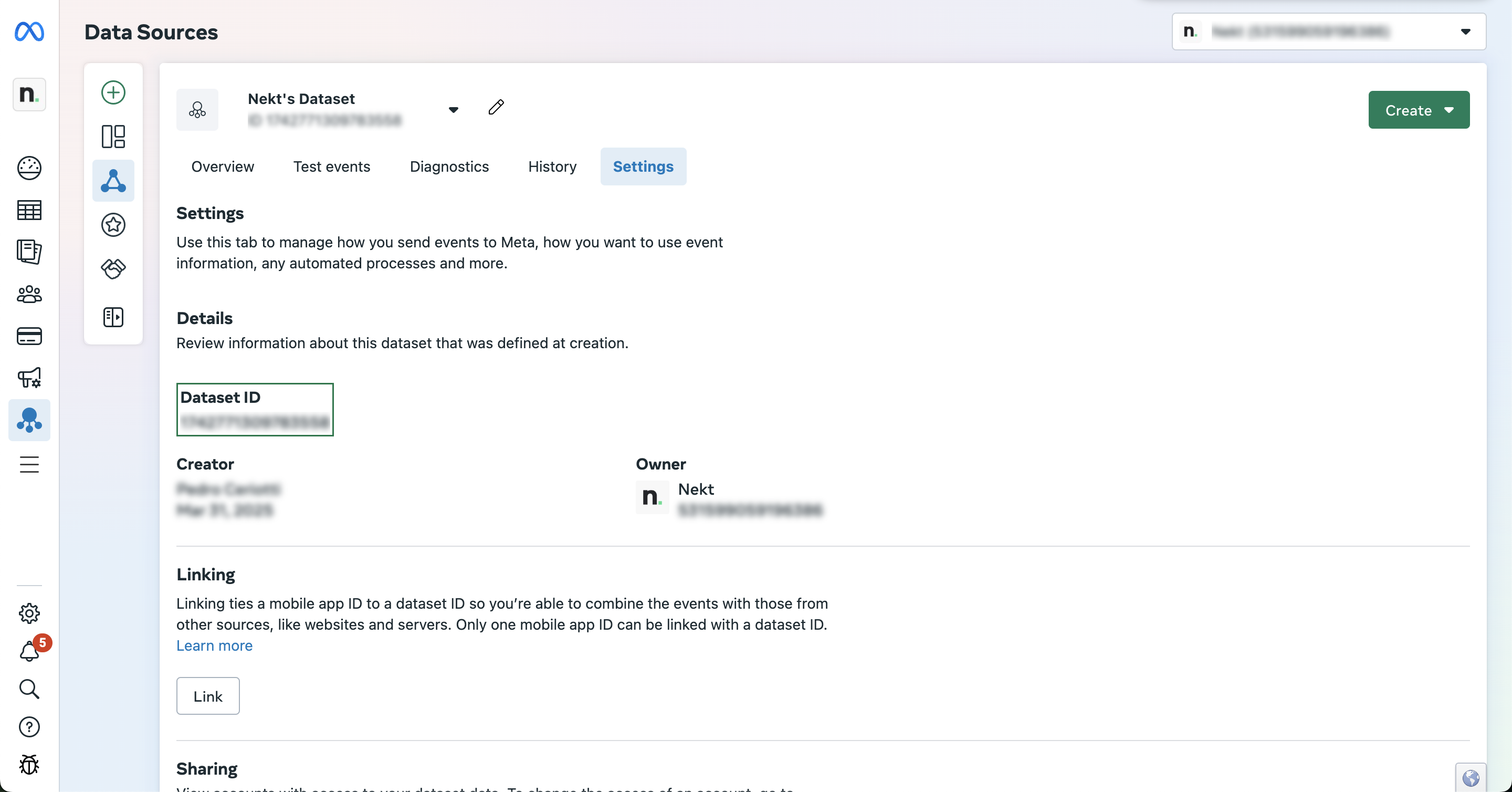
* **Pixel ID or Dataset ID**:
You can find this ID on [Facebook's Events Manager](https://business.facebook.com/events_manager2/) on the Data Sources tab.
The ID is used to match website visitors with their Facebook accounts for accurate conversion tracking and audience targeting. For detailed instructions, [click here](https://www.facebook.com/business/help/952192354843755?id=1205376682832142).
The Facebook Conversions API connector enables sending customer interaction data from your catalog directly to Facebook's advertising platform to streamline marketing campaigns and enhance conversion tracking across multiple channels. This integration ensures that your conversion data is accurately captured and properly attributed despite browser limitations and privacy changes, delivering reliable insights effortlessly to optimize your ad performance. It empowers marketing teams to target audiences more precisely, measure campaign effectiveness, and make data-driven decisions, improving advertising efficiency and maximizing return on ad spend across the organization.
## 1. Add your Facebook Conversions access
1. In the [Destinations](https://app.nekt.ai/destinations) tab, click on the "Add destination" button located on the top right of your screen. Then, select the Facebook Conversions option from the list of connectors.
2. Click **Next** and you'll be prompted to add your access.
* **Pixel ID or Dataset ID**:
You can find this ID on [Facebook's Events Manager](https://business.facebook.com/events_manager2/) on the Data Sources tab.
The ID is used to match website visitors with their Facebook accounts for accurate conversion tracking and audience targeting. For detailed instructions, [click here](https://www.facebook.com/business/help/952192354843755?id=1205376682832142).
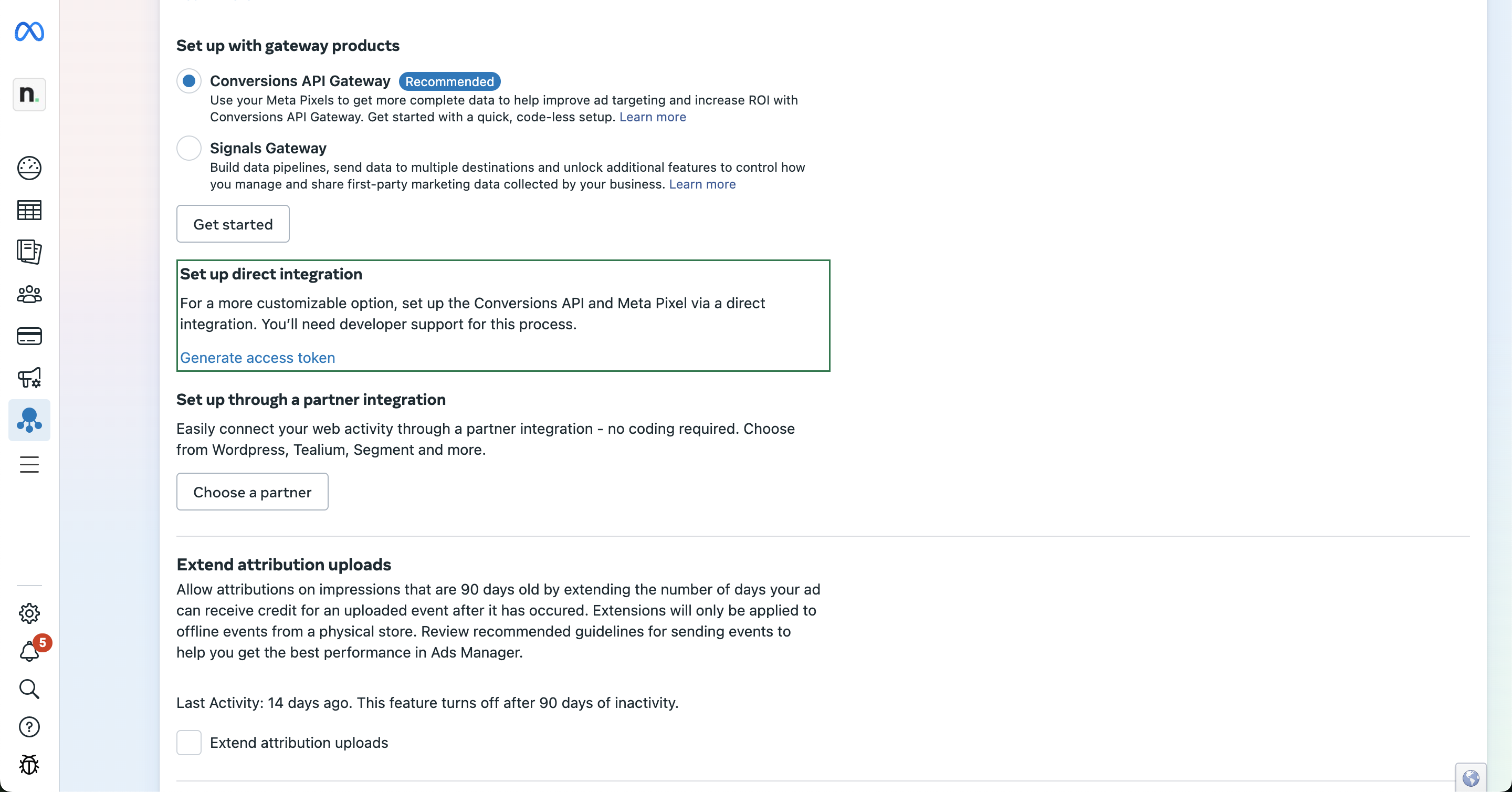
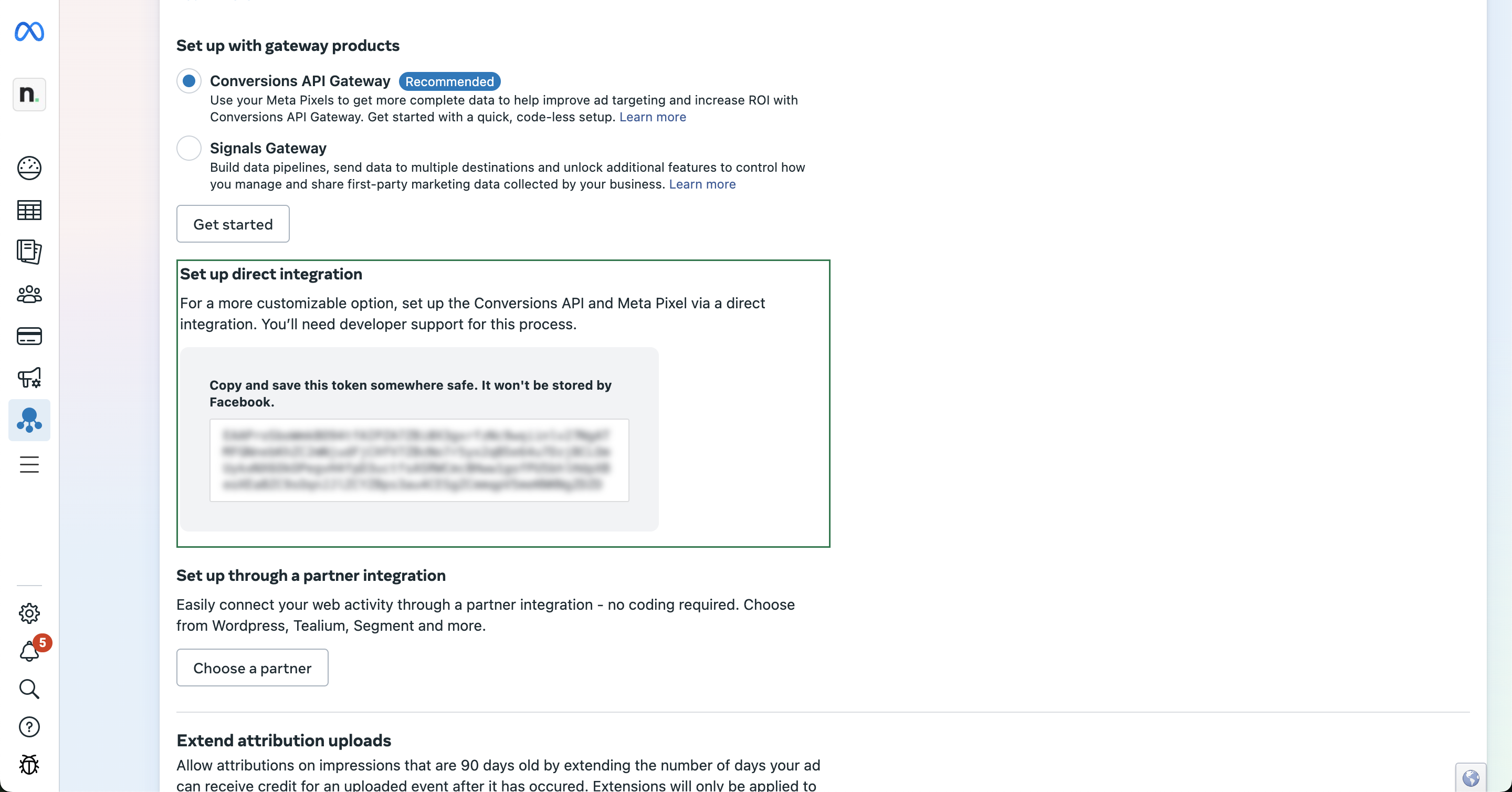
 * **Access tokens**: To generate the access token, click on `Generate access token` on the `Set up direct integration` section.
 * **Would you like Nekt to automatically hash fields required by Facebook?**: When enabled, Nekt automatically hash fields required by Facebook Conversions API: "user\_data.em", "user\_data.ph", "user\_data.fn", "user\_data.ln", "user\_data.ge", "user\_data.db", "user\_data.ct", "user\_data.st", "user\_data.zp", "user\_data.country". For detailed instructions, [click here](https://developers.facebook.com/docs/marketing-api/conversions-api/parameters).
3. Click **Next**.
## 2. Select your data to send
1. The next step is letting us know which data you want to send to the spreadsheet. Select the layer and then the desired table.
> Tip: The table can be found more easily by typing its name.
2. Click **Next**.
## 3. Map your Facebook Conversions data to send
1. Select the fields of Facebook Conversions that you want to send data. For detailed instructions, [click here](https://developers.facebook.com/docs/marketing-api/conversions-api/parameters).
2. For each field selected, select the column from your input table that will be used.
3. Click **Next**.
## 4. Configure your Facebook Conversions data destination
1. Describe your destination for easy identification within your organization. You can inform things like what data it brings, to which team it belongs, etc.
2. To define your [Trigger](https://docs.nekt.com/runs/scheduling-and-triggers),consider how frequently you need to have the data updated on the destination (every day, once a week, only at specific times, etc.).
3. Click **Done**.
### Check your new destination!
1. Once completed, you'll receive confirmation that your new destination is set up!
2. You can view your new destination on the [Destinations](https://app.nekt.ai/destinations) page. Now, for you to be able to see it on Facebook Events Manager, you have to wait for the pipeline to run. You can monitor it on the [Destinations](https://app.nekt.ai/destinations) page to see its execution and completion. If needed, manually trigger the pipeline by clicking on the refresh icon. Once executed, your data should be seen on Facebook Events Manager.
> If you encounter any issues, reach out to us via Slack, and we'll gladly assist you!
* **Would you like Nekt to automatically hash fields required by Facebook?**: When enabled, Nekt automatically hash fields required by Facebook Conversions API: "user\_data.em", "user\_data.ph", "user\_data.fn", "user\_data.ln", "user\_data.ge", "user\_data.db", "user\_data.ct", "user\_data.st", "user\_data.zp", "user\_data.country". For detailed instructions, [click here](https://developers.facebook.com/docs/marketing-api/conversions-api/parameters).
3. Click **Next**.
## 2. Select your data to send
1. The next step is letting us know which data you want to send to the spreadsheet. Select the layer and then the desired table.
> Tip: The table can be found more easily by typing its name.
2. Click **Next**.
## 3. Map your Facebook Conversions data to send
1. Select the fields of Facebook Conversions that you want to send data. For detailed instructions, [click here](https://developers.facebook.com/docs/marketing-api/conversions-api/parameters).
2. For each field selected, select the column from your input table that will be used.
3. Click **Next**.
## 4. Configure your Facebook Conversions data destination
1. Describe your destination for easy identification within your organization. You can inform things like what data it brings, to which team it belongs, etc.
2. To define your [Trigger](https://docs.nekt.com/runs/scheduling-and-triggers),consider how frequently you need to have the data updated on the destination (every day, once a week, only at specific times, etc.).
3. Click **Done**.
### Check your new destination!
1. Once completed, you'll receive confirmation that your new destination is set up!
2. You can view your new destination on the [Destinations](https://app.nekt.ai/destinations) page. Now, for you to be able to see it on Facebook Events Manager, you have to wait for the pipeline to run. You can monitor it on the [Destinations](https://app.nekt.ai/destinations) page to see its execution and completion. If needed, manually trigger the pipeline by clicking on the refresh icon. Once executed, your data should be seen on Facebook Events Manager.
> If you encounter any issues, reach out to us via Slack, and we'll gladly assist you!