> ## Documentation Index
> Fetch the complete documentation index at: https://docs.nekt.com/llms.txt
> Use this file to discover all available pages before exploring further.
# Grafana
> Connect Grafana to your data in Nekt for operational dashboards and monitoring.
Connect Grafana to your data in Nekt. How you connect depends on your cloud deployment.
| | Connector | Notes |
| :--------------- | :-------------- | :------------------------------ |
| **Nekt Express** | Google BigQuery | Via the Grafana BigQuery plugin |
| **GCP** | Google BigQuery | Via the Grafana BigQuery plugin |
| **AWS** | Amazon Athena | Via the Grafana Athena plugin |
Nekt does not have a native connector for Grafana. Registering an integration in the Nekt platform has no effect on the Grafana connection — it only helps you stay organized about your existing dashboards. The connection is configured directly in Grafana.
***
## Nekt Express
Nekt Express uses GCP infrastructure. Connect Grafana via the **BigQuery data source plugin**.
Detailed BigQuery plugin setup for Grafana is available in the [Grafana BigQuery documentation](https://grafana.com/grafana/plugins/grafana-bigquery-datasource/). You will need a Google service account with BigQuery read access to your Nekt project (`nekt-hosted-infrastructure`).
1. In Grafana, go to **Connections** → **Add new connection** and search for **Google BigQuery**.
2. Install the plugin and add it as a data source.
3. Authenticate using a Google service account with access to the `nekt-hosted-infrastructure` project.
4. Select your dataset (each layer is a dataset in BigQuery) and start building dashboards.
***
## GCP
Your Nekt workspace is on your own GCP account. Connect Grafana using the **BigQuery plugin** with your own project credentials.
You will need a Google service account with BigQuery read access to your GCP project. Refer to the [Grafana BigQuery plugin documentation](https://grafana.com/grafana/plugins/grafana-bigquery-datasource/) for setup details.
1. In Grafana, go to **Connections** → **Add new connection** and search for **Google BigQuery**.
2. Install the plugin and add it as a data source.
3. Authenticate using your GCP service account credentials.
4. Select your project, dataset, and tables.
***
## AWS
Your Nekt workspace is on your own AWS account. Connect Grafana using the **Amazon Athena plugin**. You will need AWS credentials (Access Key ID and Secret Access Key).
> Generate AWS credentials using [this AWS guide](https://docs.aws.amazon.com/IAM/latest/UserGuide/access-key-self-managed.html#Using_CreateAccessKey).
### Step 1: Install the Athena plugin
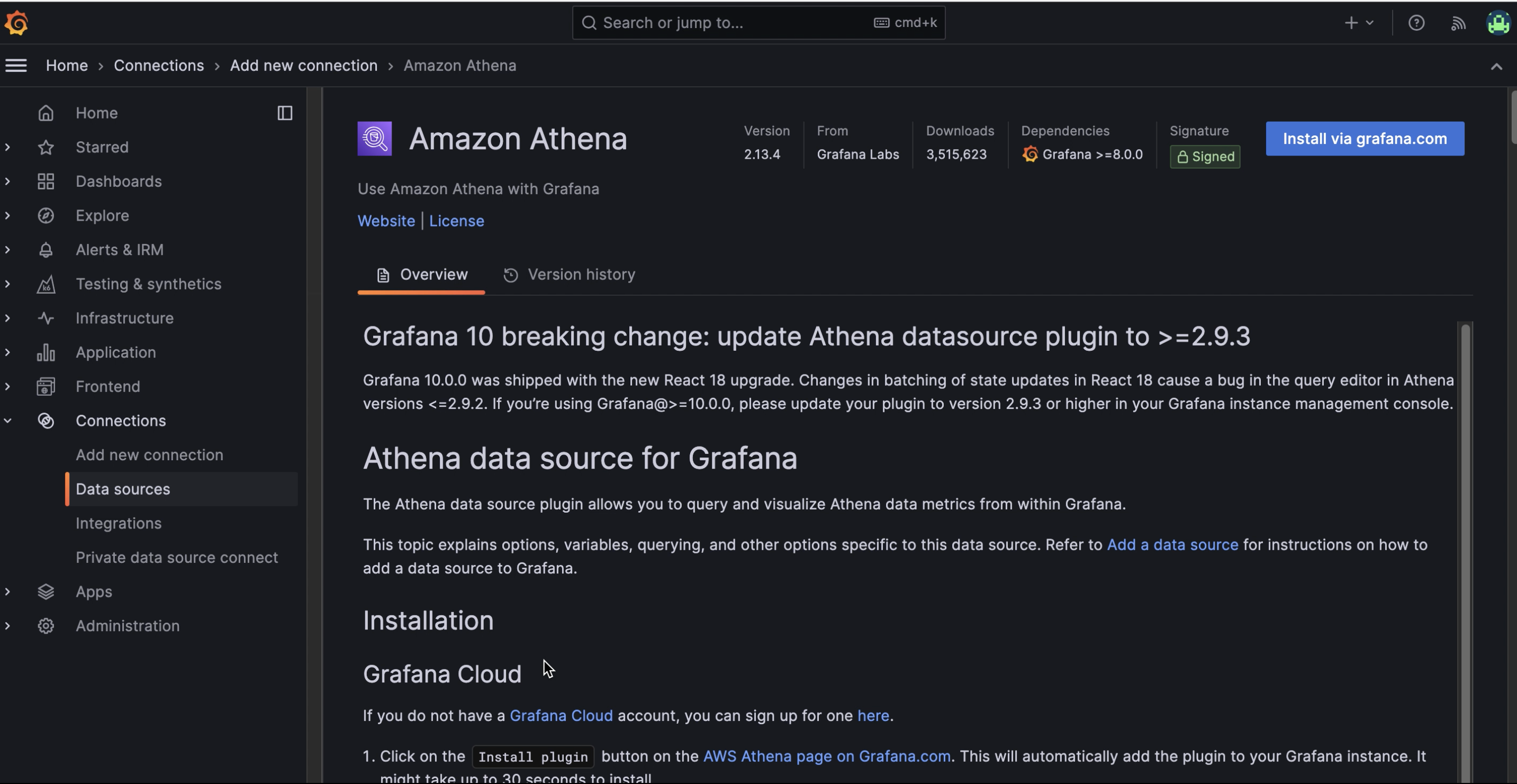
1. In Grafana, go to **Connections** → **Add new connection** and search for **Amazon Athena**.
2. Filter by **Data sources** if needed.
3. Click **Install via grafana.com**.
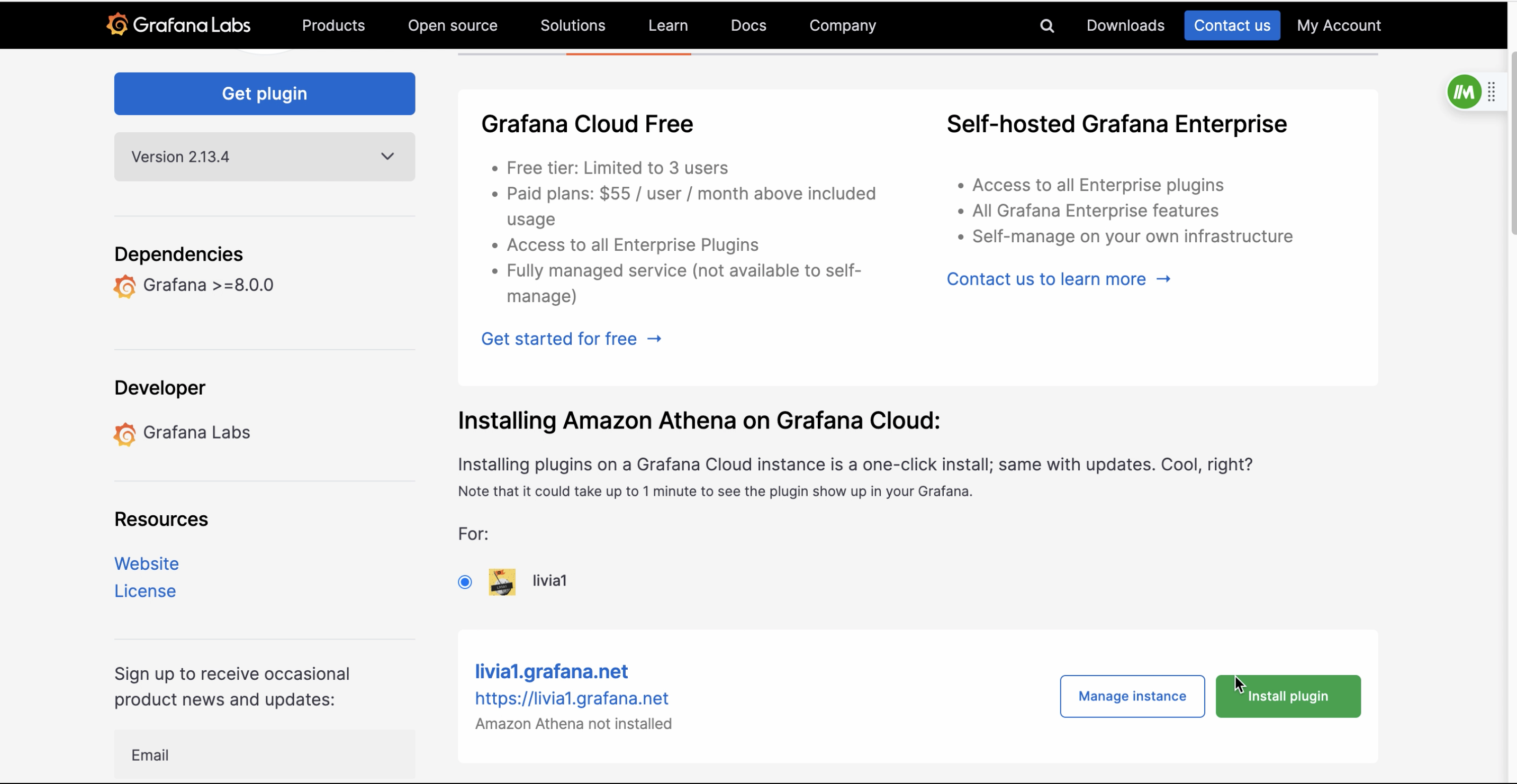
 On the plugin page, click **Install plugin**.
 ### Step 2: Configure the Athena data source
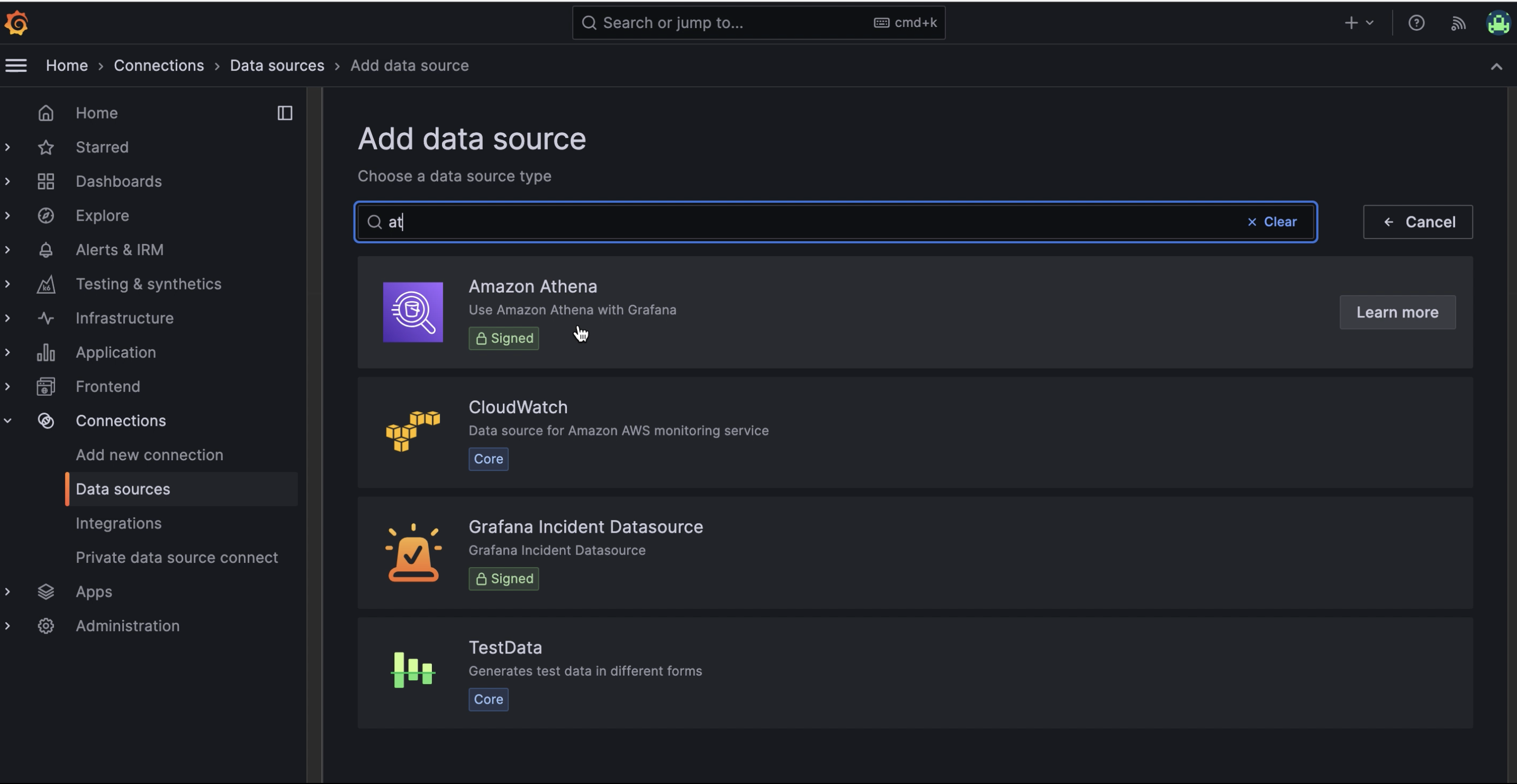
1. Go to **Connections** → **Data Sources** → **Add data source** and select **Amazon Athena**.
### Step 2: Configure the Athena data source
1. Go to **Connections** → **Data Sources** → **Add data source** and select **Amazon Athena**.
 2. Keep the default authentication provider (**Access and secret key**) and enter your **Access Key ID** and **Secret Access Key**.
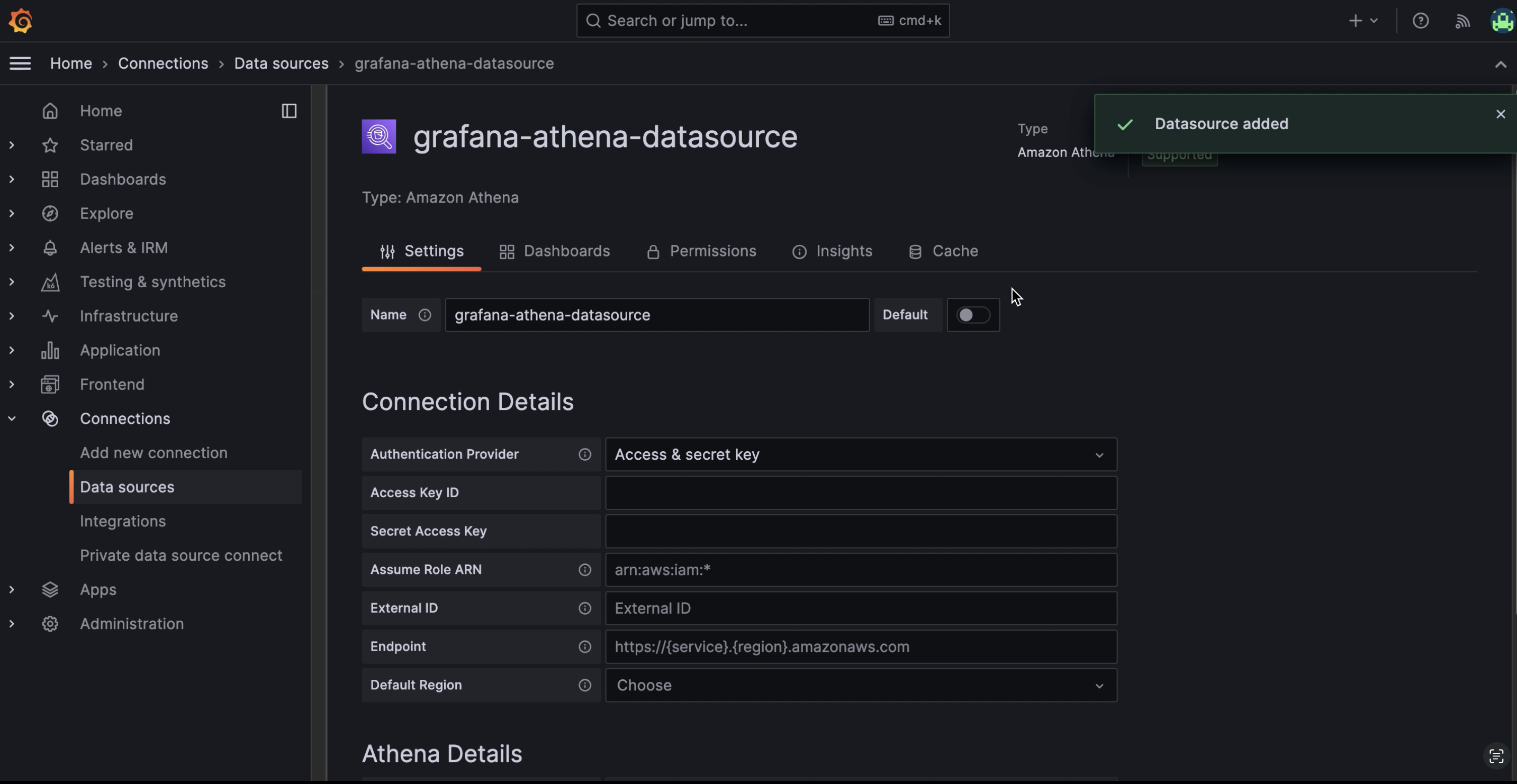 3. Enter the **AWS region** where your Nekt workspace is hosted.
4. Fill in the **Athena details** section:
* **Data Source**: `AwsDataCatalog`
* **Database**: the layer you want to connect (each layer is a database)
* **Workgroup**: `primary`
* **Output Location**: `s3://nekt-lakehouse-{your_company_slug}/_athena`
Contact Nekt support to get your company slug.
### Step 3: Save and test
Click **Save & Test**. If the connection is successful, you can start building dashboards.
> For more details, see [Using the Amazon Athena plugin for Grafana](https://grafana.com/blog/2021/12/13/query-and-analyze-amazon-s3-data-with-the-new-amazon-athena-plugin-for-grafana/).
3. Enter the **AWS region** where your Nekt workspace is hosted.
4. Fill in the **Athena details** section:
* **Data Source**: `AwsDataCatalog`
* **Database**: the layer you want to connect (each layer is a database)
* **Workgroup**: `primary`
* **Output Location**: `s3://nekt-lakehouse-{your_company_slug}/_athena`
Contact Nekt support to get your company slug.
### Step 3: Save and test
Click **Save & Test**. If the connection is successful, you can start building dashboards.
> For more details, see [Using the Amazon Athena plugin for Grafana](https://grafana.com/blog/2021/12/13/query-and-analyze-amazon-s3-data-with-the-new-amazon-athena-plugin-for-grafana/).