> ## Documentation Index
> Fetch the complete documentation index at: https://docs.nekt.com/llms.txt
> Use this file to discover all available pages before exploring further.
# Share a setup link
> Invite a client or third party to fill in source credentials without giving them access to your workspace.
When configuring a new source, you can generate a shareable link so that someone outside your workspace can complete the connector setup on your behalf. This is useful when the credentials, account access, or OAuth authentication belong to a client, a partner, or a colleague in another team — for example, a marketing agency setting up a Facebook Ads source on a client's ad account.
The recipient opens the link, fills in the configuration fields (or signs in through OAuth for connectors like Facebook Ads, Google Ads, or HubSpot), and the values are saved back to the draft source in your workspace. You can then resume the setup and finish creating the source.
***
### **How it works**
While adding a new source, the configuration step shows a **Share setup link** button at the top of the form. Generating the link creates a draft of the source and produces a URL that can be sent to the recipient.
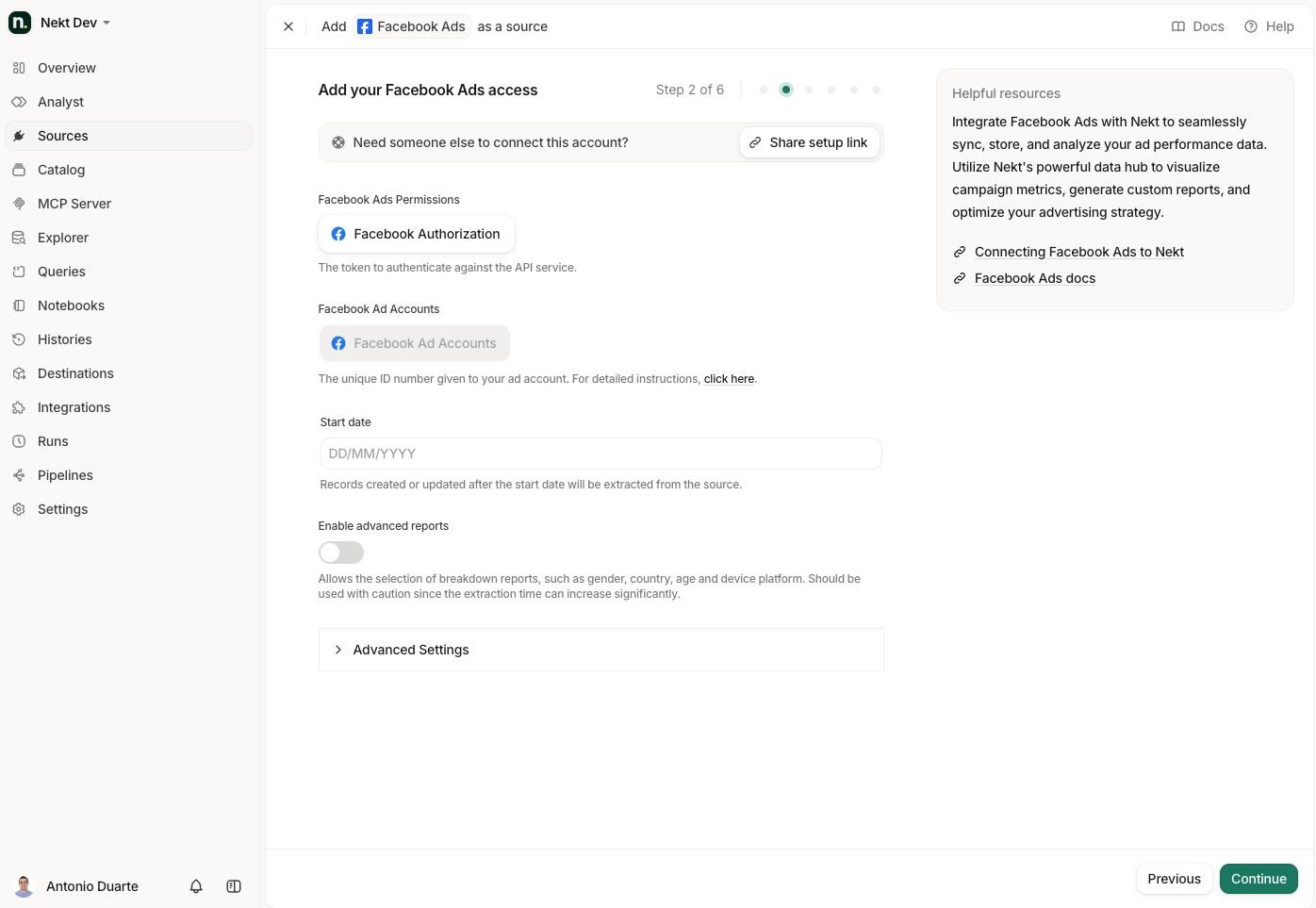 Go to the [Sources](https://app.nekt.ai/sources) page, click **Add source**, and select the connector you want to configure.
On the access configuration step, click **Share setup link**. Nekt creates a draft source and returns a URL you can copy and share.
Share the URL with the client or third party through your preferred channel (email, Slack, WhatsApp, etc.). They do not need a Nekt account.
The recipient opens the link and sees a page identifying who requested the connection and which connector is being set up. They enter credentials, paste tokens, or authenticate through OAuth — depending on what the connector requires.
Go to the [Sources](https://app.nekt.ai/sources) page, click **Add source**, and select the connector you want to configure.
On the access configuration step, click **Share setup link**. Nekt creates a draft source and returns a URL you can copy and share.
Share the URL with the client or third party through your preferred channel (email, Slack, WhatsApp, etc.). They do not need a Nekt account.
The recipient opens the link and sees a page identifying who requested the connection and which connector is being set up. They enter credentials, paste tokens, or authenticate through OAuth — depending on what the connector requires.
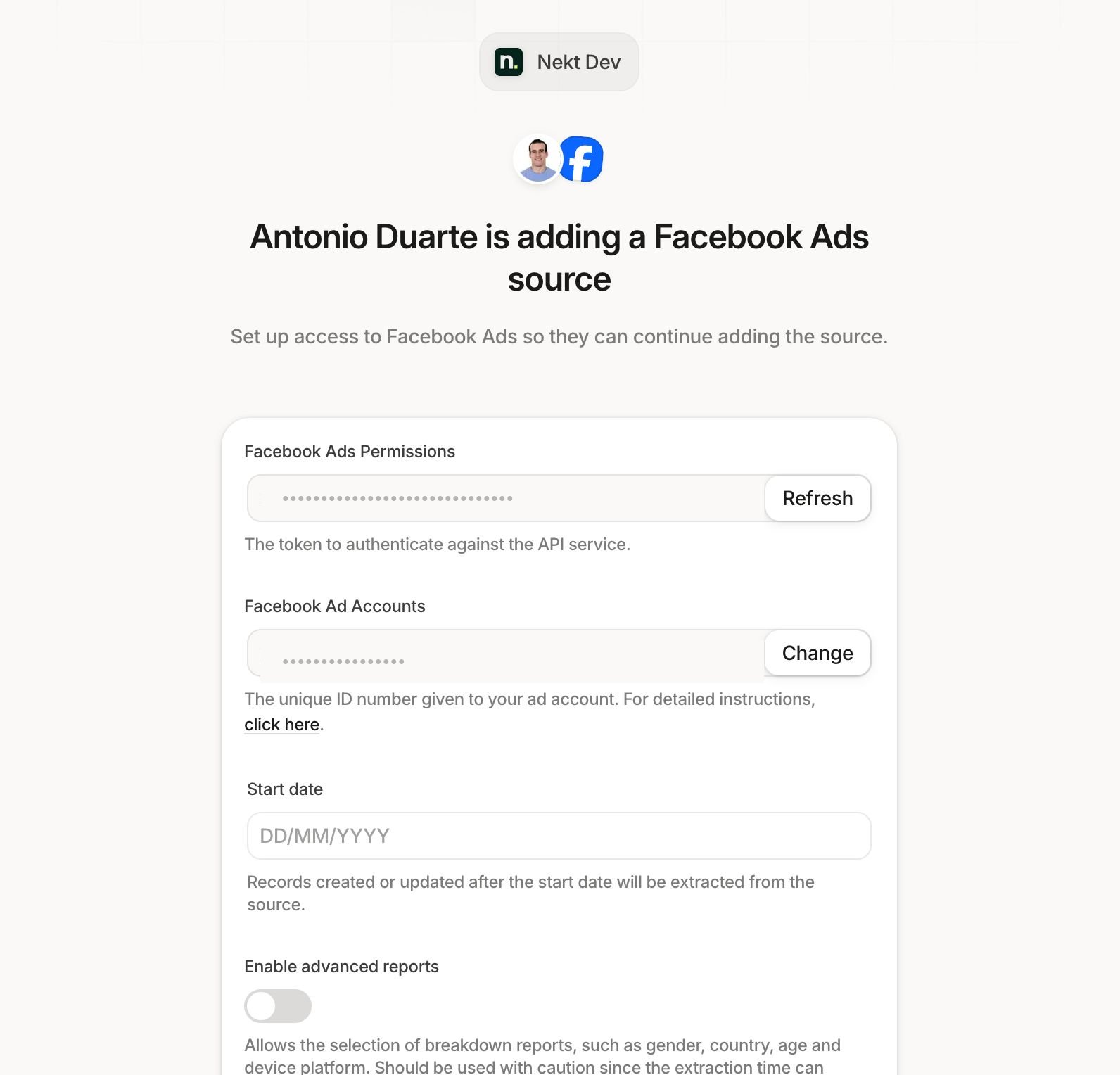 Once the recipient submits the form, the values are saved to the draft source. You can return to the source in your workspace, continue from where you left off, select streams, configure the sync, and finish creating the source.
***
### **Partial information is allowed**
The recipient does not have to fill in every field. They can submit whatever information they have access to and leave the rest blank. You can complete the missing fields yourself afterwards, or send another setup link to a different person to fill in the remaining values.
***
### **Security and access**
The setup link is scoped strictly to the source draft it was generated for. The recipient cannot reach any other part of your workspace, view existing sources, or see catalog data.
The setup link contains a token that **expires 24 hours after it is generated**. If the recipient does not complete the form in time, generate a new link from the same draft source.
The recipient sees only the connector setup form for the specific source they were invited to configure. Access ends as soon as they submit the form or the token expires.
***
### **When to use a setup link**
* A client owns the ad account, CRM, or database you want to connect — and you need them to authenticate or paste credentials.
* An IT or security team controls the credentials for an internal system and they prefer to enter the values themselves.
* A teammate without a Nekt seat needs to provide configuration details for a connector you are setting up.
## Skills for agents
Share setup link documentation as plain markdown, for use in AI agent contexts.
Once the recipient submits the form, the values are saved to the draft source. You can return to the source in your workspace, continue from where you left off, select streams, configure the sync, and finish creating the source.
***
### **Partial information is allowed**
The recipient does not have to fill in every field. They can submit whatever information they have access to and leave the rest blank. You can complete the missing fields yourself afterwards, or send another setup link to a different person to fill in the remaining values.
***
### **Security and access**
The setup link is scoped strictly to the source draft it was generated for. The recipient cannot reach any other part of your workspace, view existing sources, or see catalog data.
The setup link contains a token that **expires 24 hours after it is generated**. If the recipient does not complete the form in time, generate a new link from the same draft source.
The recipient sees only the connector setup form for the specific source they were invited to configure. Access ends as soon as they submit the form or the token expires.
***
### **When to use a setup link**
* A client owns the ad account, CRM, or database you want to connect — and you need them to authenticate or paste credentials.
* An IT or security team controls the credentials for an internal system and they prefer to enter the values themselves.
* A teammate without a Nekt seat needs to provide configuration details for a connector you are setting up.
## Skills for agents
Share setup link documentation as plain markdown, for use in AI agent contexts.