If your tool for data visualization is Power BI and your datalake is hosted by GCP, here’s the guide to create the connection.
Once you have your data ready to be consumed, you can connect it to a visualization tool to generate meaningful visuals.
If your datalake is set up on
AWS or
GCP, check its respective documentation links. The following tutorial works for workspaces created with Nekt Express.
1. Select Power BI as a Visualization
- Select Power BI on the list of available visualization tools
- Inform the email used on your Power BI account
- Add a description to better identify what will be shown on this visualization you’re creating
Great! Now you have authorized your account to connect with the data tables.
2. Disable new BigQuery connector implementation
This is a required step. If you don’t disable the new BigQuery connector implementation, you won’t be able to use the BigQuery connector.
- Open Power BI Desktop.
- Go to File → Options and settings → Options.
- Under Preview features, uncheck “Use new Google BigQuery connector implementation”.
- Click OK to confirm.
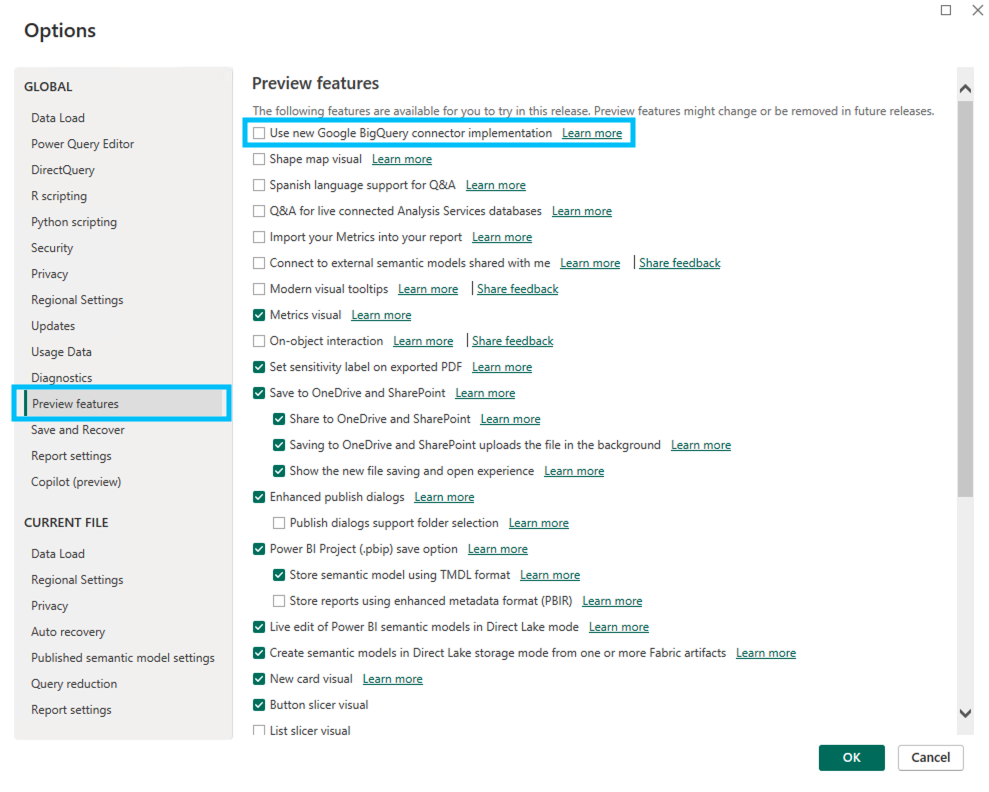 This falls back to the ODBC connector instead of ADBC.
3. Choose the BigQuery connector
- Click Home → Get Data → More…
- In the Get Data dialog, search for Google BigQuery and select it.
- Click Connect.
On your first time using the BigQuery connector, you will be prompted to sign in with your Google account. Make sure to use the same email informed on Nekt, and the same account logged in on Power BI. Click Allow to grant Power BI the necessary permissions.
4. Select the data and load
- In the Navigator panel, expand the project to browse your datasets and tables.
- Select the table(s) you want to use.
- Click Load to import the data directly, or Transform Data to open Power Query Editor and shape the data before loading.
You’re all set! Your data from Nekt’s catalog is now available in Power BI for building reports and dashboards.
Let us know through our chat if you face any blocker and we’ll be happy to help!

