Nekt Express
Nekt Express uses GCP infrastructure. Connect via the native BigQuery connector using the shared Nekt project.Step 1: Register the integration in Nekt
- In the Nekt platform, go to Integrations and click Add integration.
- Select Looker Studio from the list.
- Enter the email address associated with your Looker Studio account.
- Add a description to identify this integration.
Step 2: Choose the BigQuery connector
- Sign in to Looker Studio. Use the same email registered in step 1.
- Click Create → Data Source.
- Select the BigQuery connector.
- If prompted, click AUTHORIZE and allow the necessary permissions.
Step 3: Set the Project ID
When prompted, enter the following Project ID:Step 4: Select the data and explore
- Browse to the dataset and table you want to connect.
- Click Connect in the top-right corner.
- You will see a column preview. Click Explore or Create Report to proceed.
GCP
Your Nekt workspace is hosted on your own GCP account. Connect directly to BigQuery using your project.Step 1: Choose the BigQuery connector
- Sign in to Looker Studio.
- Click Create → Data Source.
- Select the BigQuery connector.
- If prompted, authorize with your GCP account email and click Allow.
Step 2: Select the data and explore
- Under My Projects, find and select the table you want to connect.
- Click Connect in the top-right corner.
- Click Explore or Create Report to proceed.
AWS
Your Nekt workspace is hosted on your own AWS account. Connection is made through Nekt’s custom Looker Studio connector, which requires a scoped access token.Step 1: Generate a token
- In the Nekt platform, go to Integrations, find Looker Studio, and click Configure.
-
Create an access token and select the tables you want to make available. You can select tables from any Lakehouse layer.
The token grants access only to the tables selected here. You can create multiple tokens to give access to different sets of tables, which is useful for data governance.
- Click Next.
- Give the integration a description (this helps you identify it later). Optionally, add a link to the report.
- Click Next, then copy the generated token from the Integrations page.
Step 2: Open Nekt’s connector
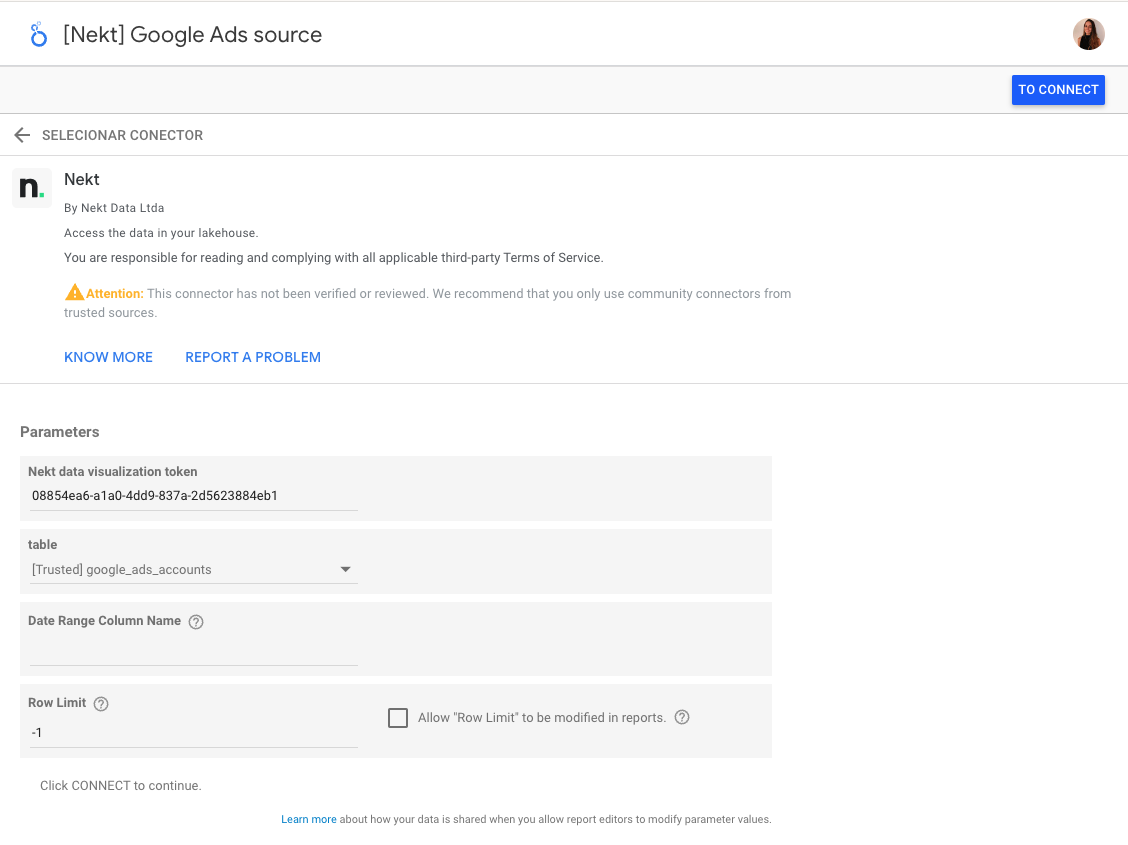
Access Nekt’s Looker Studio connector directly via this link: Open Nekt connector in Looker Studio On your first use, click AUTHORIZE and complete the Google sign-in. Click Allow to confirm permissions.Step 3: Configure the connection
Fill in the access parameters:- Nekt data visualization token: paste the token generated in Step 1.
-
Table: select the table to connect (Looker Studio connects one table at a time).
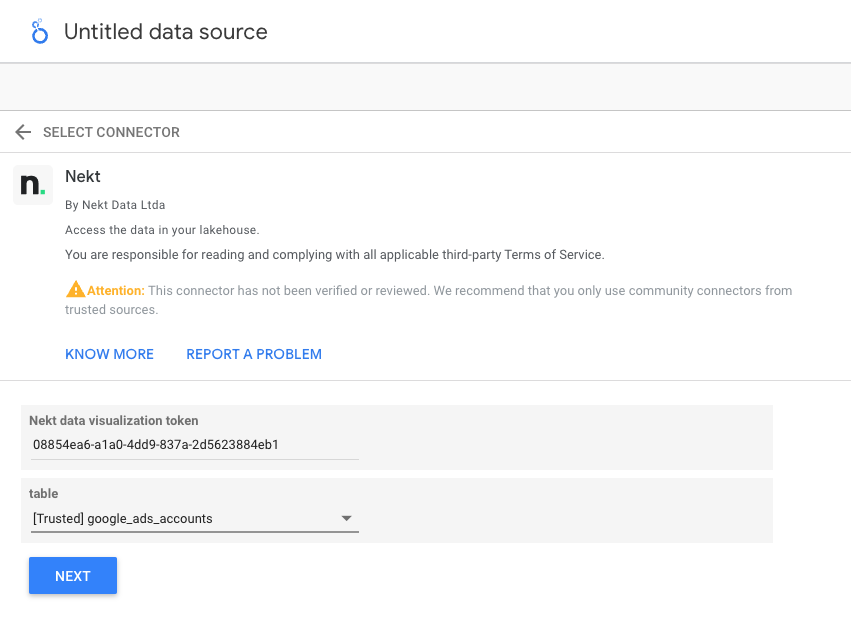
- Date range column name: the column to use when applying date range filters in reports.
-
Row limit: maximum rows per query. Default is
1000. Set to-1to fetch all rows.