

Nekt Express
Nekt Express uses GCP infrastructure. Connect via the native BigQuery connector using the shared Nekt project.Step 1: Register the integration in Nekt
- In the Nekt platform, go to Integrations and click Add integration.
- Select Power BI from the list.
- Enter an email address from a Google account, as that will be used to authenticate against BigQuery connector on Power BI.
- Add a description to identify this integration.
Step 2: Disable the new BigQuery connector implementation
- Open Power BI Desktop.
- Go to File → Options and settings → Options.
- Under Preview features, uncheck “Use new Google BigQuery connector implementation”.
- Click OK.
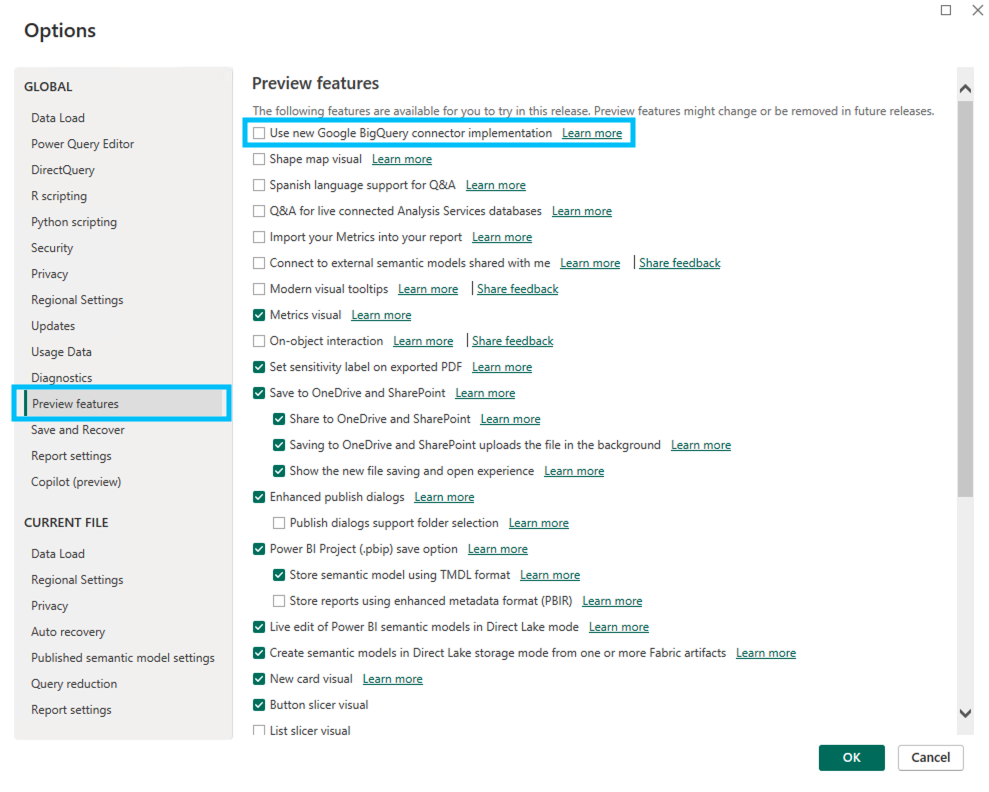
Step 3: Choose the BigQuery connector
- Click Home → Get Data → More….
- Search for Google BigQuery and select it. Click Connect.
- On your first use, sign in with the Google account registered in Step 1. Click Allow to grant permissions.
Step 4: Select the data and load
- In the Navigator panel, expand the project to browse datasets and tables.
- Select the table(s) you want.
- Click Load to import directly, or Transform Data to open Power Query Editor first.
GCP
Your Nekt workspace is on your own GCP account. Connect using the native BigQuery connector in Power BI Desktop or Power BI Online.Power BI Desktop
- Open Power BI Desktop and go to Get Data.
- Search for and select Google BigQuery.
- Optionally, expand Advanced options to specify a Billing Project ID.
- Choose your authentication method:
- Organizational login: standard Google account OAuth.
- Service Account Login: paste the service account email and the JSON key contents (ensure the JSON has all newlines removed).
- Click Sign In, complete the Google authentication prompt, then click Connect.
- In the Navigator, browse your BigQuery datasets and tables.
- Select a table and click Load or Transform Data.
Power BI Online (Service)
- In the Power BI web app, choose Get Data.
- Select Google BigQuery.
- Create a new connection or reuse an existing one.
- Select your authentication method (organizational account or service account).
- Sign in and browse to your BigQuery tables. Click Next.
Authentication notes
- Organizational Account: standard Google OAuth with your user account.
- Service Account: for Power BI Service or Power Query Online, use Basic authentication: username = service account email, password = flattened JSON key (no newlines).
- If you encounter permission errors, verify your IAM roles include sufficient BigQuery permissions.
- Nested fields may appear as JSON strings; use Power Query to expand or parse them.
AWS
Your Nekt workspace is on your own AWS account. Connection uses an ODBC driver and Nekt’s custom Power BI connector (nekt.pqx), signed with Nekt’s certificate. A scoped access token is required.
Requirements
- Power BI Desktop installed from the official website (not the Microsoft Store; Store installations block custom connectors).
Step 1: Generate a token
- In the Nekt platform, go to Integrations and click Add integration.
- Select Power BI as the integration type.
-
Select the tables you want to make available.
The token grants access only to the tables selected here. You can create multiple tokens for different sets of tables.
- Click Next.
- Give the integration a description and optionally add a report link.
-
Click Next, then copy the Identifier (e.g.
power-bi-abcd) and the Token from the Integrations page.
Step 2: Install the ODBC driver
Download and install the Amazon Athena ODBC 2.x driver for Windows from AWS documentation.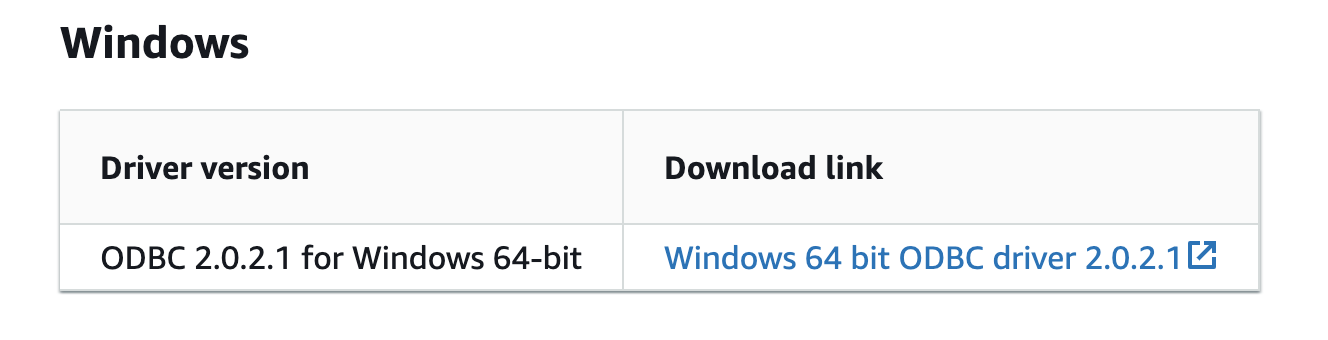
Step 3: Download and place the Nekt connector
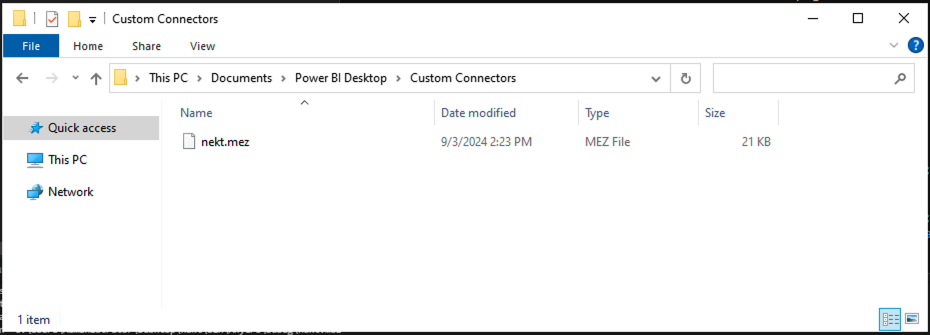
Downloadnekt.pqx (always the latest version) and place it in:
Download a specific connector version
Download a specific connector version
nekt.pqx always points to the latest version. To install a specific version, download it from this list. All versions are signed with Nekt’s certificate.Step 4: Trust the Nekt connector
The connector is signed with Nekt’s certificate. Trusting that certificate lets Power BI load the connector while keeping the default Data Extensions security level. Do this once per machine.- Trust Nekt's certificate (recommended)
- Allow any extension (no admin rights)
This option requires administrator rights on the machine.
1
Open PowerShell as administrator
Press the Windows key, type
PowerShell, and press Ctrl+Shift+Enter. Click Yes when Windows asks for permission.2
Run the trust command
Paste the command below and press Enter.The command adds Nekt’s certificate thumbprint (
95F982559840B15360B296E817A7ABFDC30A7EC5) to the TrustedCertificateThumbprints value under HKEY_LOCAL_MACHINE\Software\Policies\Microsoft\Power BI Desktop. Thumbprints already in that list stay trusted, and running the command again has no effect.3
Restart Power BI Desktop
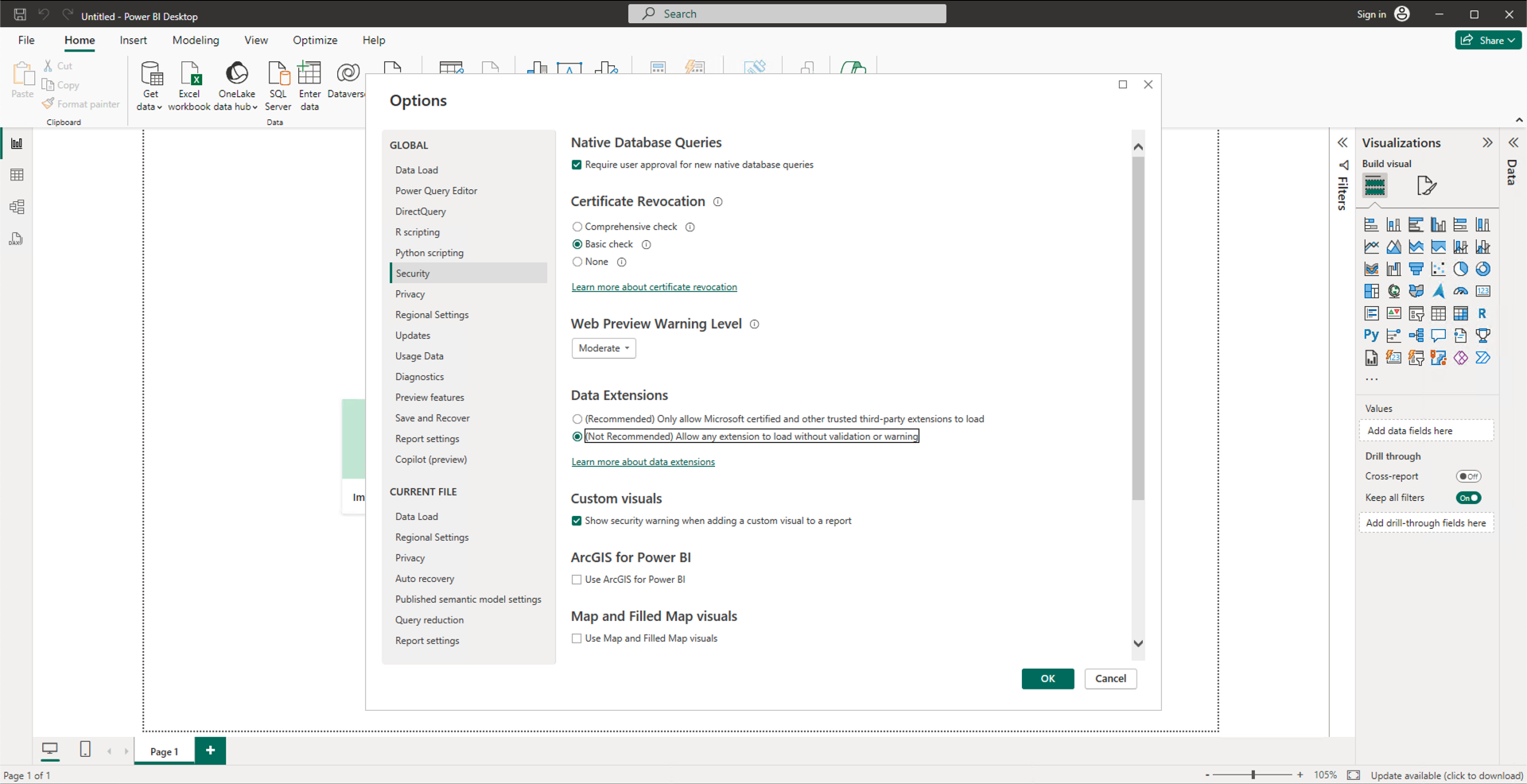
In File → Options and settings → Options → Security → Data Extensions, keep (Recommended) Only allow Microsoft certified and other trusted third-party extensions to load.
Step 5: Connect
- Open a new file in Power BI Desktop and click Get Data.
- Search for and select Nekt as the data source.
- Enter the Identifier from your integration (e.g.
power-bi-abcd). Click OK. - Enter the Token. Click Connect.
- Select the tables you want and proceed normally.
Troubleshooting
-
Use the most recent version of Power BI Desktop, the ODBC driver, and the
nekt.pqxfile. - Confirm Power BI was installed from the official website, not the Microsoft Store.
-
Nekt doesn’t appear in Get Data: confirm
nekt.pqxis in the Custom Connectors folder (see the OneDrive tip in Step 3). Right-click the file → Properties, and if an Unblock checkbox appears, select it and click OK. Restart Power BI Desktop. -
Power BI shows an “Uncertified connectors” dialog listing Nekt: Nekt’s certificate isn’t trusted on this machine. Run the trust command from Step 4 as administrator and restart Power BI Desktop. To check the trusted thumbprints, run this in PowerShell; the output should include
95F982559840B15360B296E817A7ABFDC30A7EC5: -
Two Nekt connectors, or an old version, load: remove every Nekt connector file from the Custom Connectors folder except
nekt.pqx.
Automatic refresh with a gateway (AWS)
To enable scheduled data refresh in Power BI Service, you need an On-Premises Data Gateway running on a machine that has the ODBC driver andnekt.pqx installed.
Gateway setup guide
Gateway setup guide
On the gateway machine
Ensure the following are installed and up to date on the gateway machine:- Power BI Desktop
- On-Premises Data Gateway
- Amazon Athena ODBC 2.x driver
nekt.pqxin the[Documents]\Microsoft Power BI Desktop\Custom Connectorsfolder, with no other Nekt connector files- Nekt’s certificate trusted, as in Step 4. Without administrator rights, allow any extension in Power BI’s Data Extensions settings instead.
Configure the On-Premises Data Gateway
- Open the On-Premises Data Gateway app and complete installation.
- In the ‘Email address to use with this gateway’ field, enter the email used in Power BI Service.
- Log in with your Power BI Service account.
- Select Register a new gateway on this computer.
- Give the gateway a name (e.g.
aws-gateway) and set a recovery key. Click Configure.
- Check which user the gateway runs as: open the gateway app → Service Settings. The default is
NT SERVICE\PBIEgwService. - Right-click the Custom Connectors folder → Properties → Security tab → Edit.
- Click Add, type
NT SERVICE\PBIEgwService, click Check Names, then OK. - Grant Read & execute, List folder contents, and Read permissions. Click Apply then OK.
- In the gateway app, go to Connectors and point it to your Custom Connectors folder. Click Apply. The gateway will restart. If the Nekt connector doesn’t appear, restart the gateway from Service Settings.
Publish and configure in Power BI Service
- Publish your semantic model from Power BI Desktop while logged in to your Power BI Service account.
- In Power BI Service, go to Settings → Manage connections and gateways. The gateway should appear under On-premises data gateways.
- Open the gateway settings:
- General: enable “Distribute requests across all active gateways in this cluster”.
- Power BI: enable “Allow user’s cloud data sources to refresh through this gateway cluster” and “Allow user’s custom data connectors to refresh through this gateway cluster”. Click Save.
Add the data source to the gateway
- Open the semantic model’s settings → Gateway and cloud connections.
- The data source will show “Not properly configured”. Click the play icon → Add manually to gateway.
- Configure:
- Connection name: use the Integration Identifier (e.g.
power-bi-abcd) - Visualization identifier: the Integration Identifier
- Authentication method: Visualization Token
- Visualization token: the token from your integration in Nekt
- Connection name: use the Integration Identifier (e.g.
- Click Create.
- In the dropdown, select the gateway for this semantic model. Click Apply.
Repeat this process for each semantic model you want to configure with the gateway.
Set up automatic refresh
In the semantic model settings → Refresh, configure the schedule and click Apply. All reports using this model will refresh on that schedule.Using an AWS Windows EC2 instance as a gateway
Using an AWS Windows EC2 instance as a gateway
If you don’t have a local Windows machine to run the gateway, you can use a Windows EC2 instance on AWS.
1. Launch a Windows EC2 instance
- Log in to the AWS Console and go to EC2 → Launch instance.
- Configure:
- Name:
power-bi-gateway(or any descriptive name) - OS: Microsoft Windows Server 2025 Base (Quick Start tab)
- Instance type:
t3.mediumminimum (2 vCPU, 4 GiB RAM, ~$0.06/hr) - Key pair: select or create one (needed for RDP access)
- Network settings: create a security group and allow RDP traffic from your IP
- Storage: 60 GiB gp3 root volume
- Name:
- Click Launch instance.
2. Connect via Remote Desktop (RDP)
- In EC2, select the instance → Connect → RDP Client tab.
- Click Get Password, upload the key pair file, and click Decrypt password.
- Note the Public DNS, Username, and Password.
- Install Microsoft Remote Desktop on your local machine.
- Add a new PC: paste the Public DNS, add a user account with the Username and Password, then connect.