

Nekt Express
Nekt Express uses GCP infrastructure. Connect Qlik Sense using the native Google BigQuery connector.You will need a Google account with access to the
nekt-hosted-infrastructure BigQuery project. Refer to Qlik’s BigQuery connector documentation for full setup details.- In Qlik Sense, go to Add new data → Data Connection.
- Search for and select Google BigQuery.
- Authenticate with your Google account that has access to
nekt-hosted-infrastructure. - Browse to your dataset (each layer is a dataset in BigQuery) and select tables.
GCP
Your Nekt workspace is on your own GCP account. Connect Qlik Sense using the native Google BigQuery connector with your own project.Refer to Qlik’s BigQuery connector documentation for full setup details.
- In Qlik Sense, go to Add new data → Data Connection.
- Select Google BigQuery.
- Authenticate with your GCP credentials.
- Select your project, datasets, and tables.
AWS
Your Nekt workspace is on your own AWS account. Connect Qlik Sense using the Amazon Athena ODBC connector.You will need AWS credentials: Access Key ID and Secret Access Key. Generate them using this AWS guide.
Step 1: Find the Athena connector
-
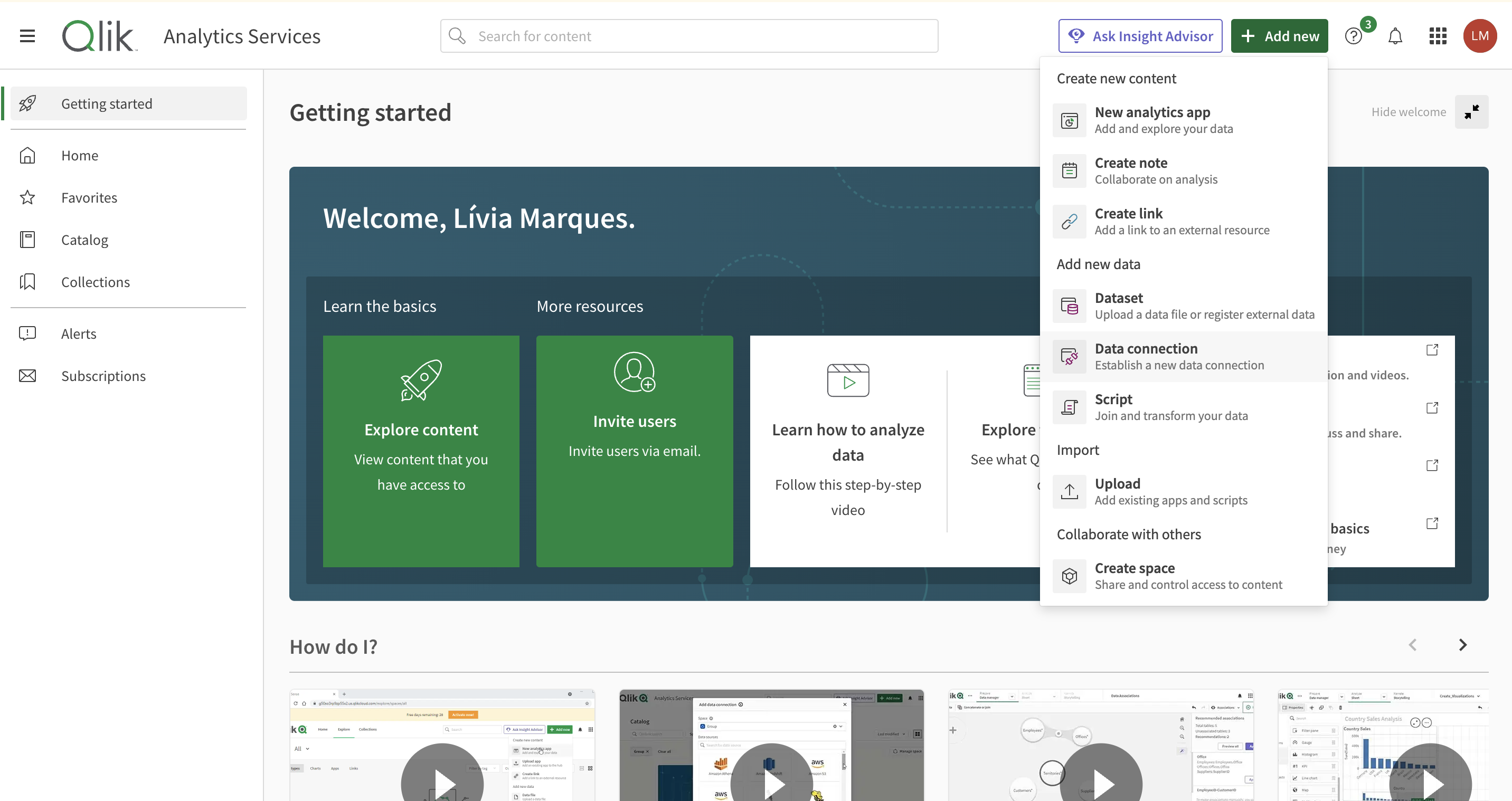
In the Qlik Sense main page, go to Add new data → Data Connection.
-
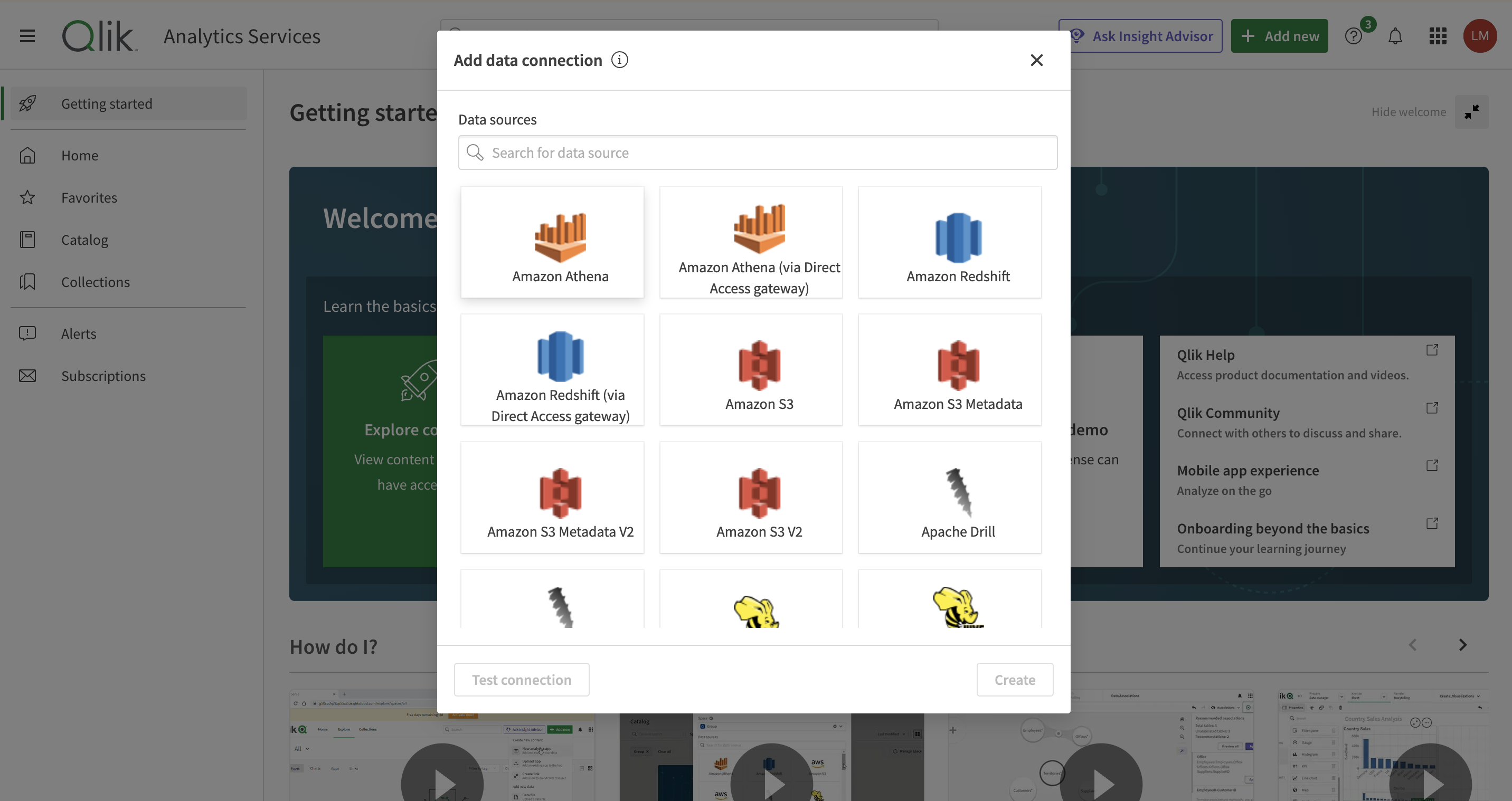
Select Amazon Athena.
There is a second Athena option labeled “via Direct Access Gateway”; do not use it. This guide requires the standard Amazon Athena connector.
Step 2: Enter connection credentials
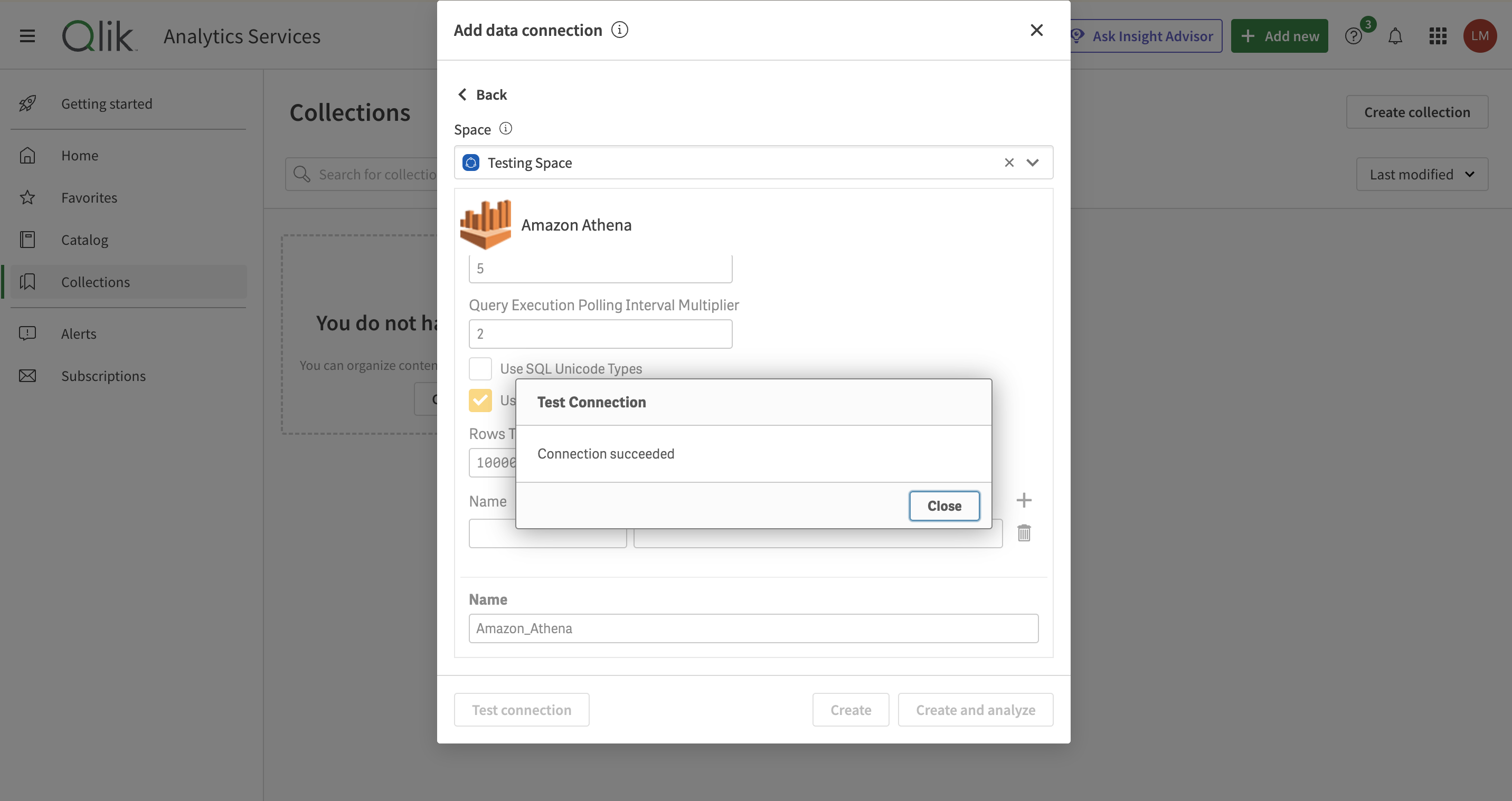
Update the following fields (you can leave others as default):- AWS Region: your workspace region
- Data source:
AwsDataCatalog - Database: the layer to connect
- Workgroup:
primary - Access key ID: your IAM Access Key ID
- Secret Key: your IAM Secret Access Key
- S3 output location:
s3://nekt-lakehouse-{your_company_slug}/_athena
Step 3: Connect and select data
Click Connect and Analyze. Use the checkboxes to select the tables and columns you need, then click Next to start building dashboards.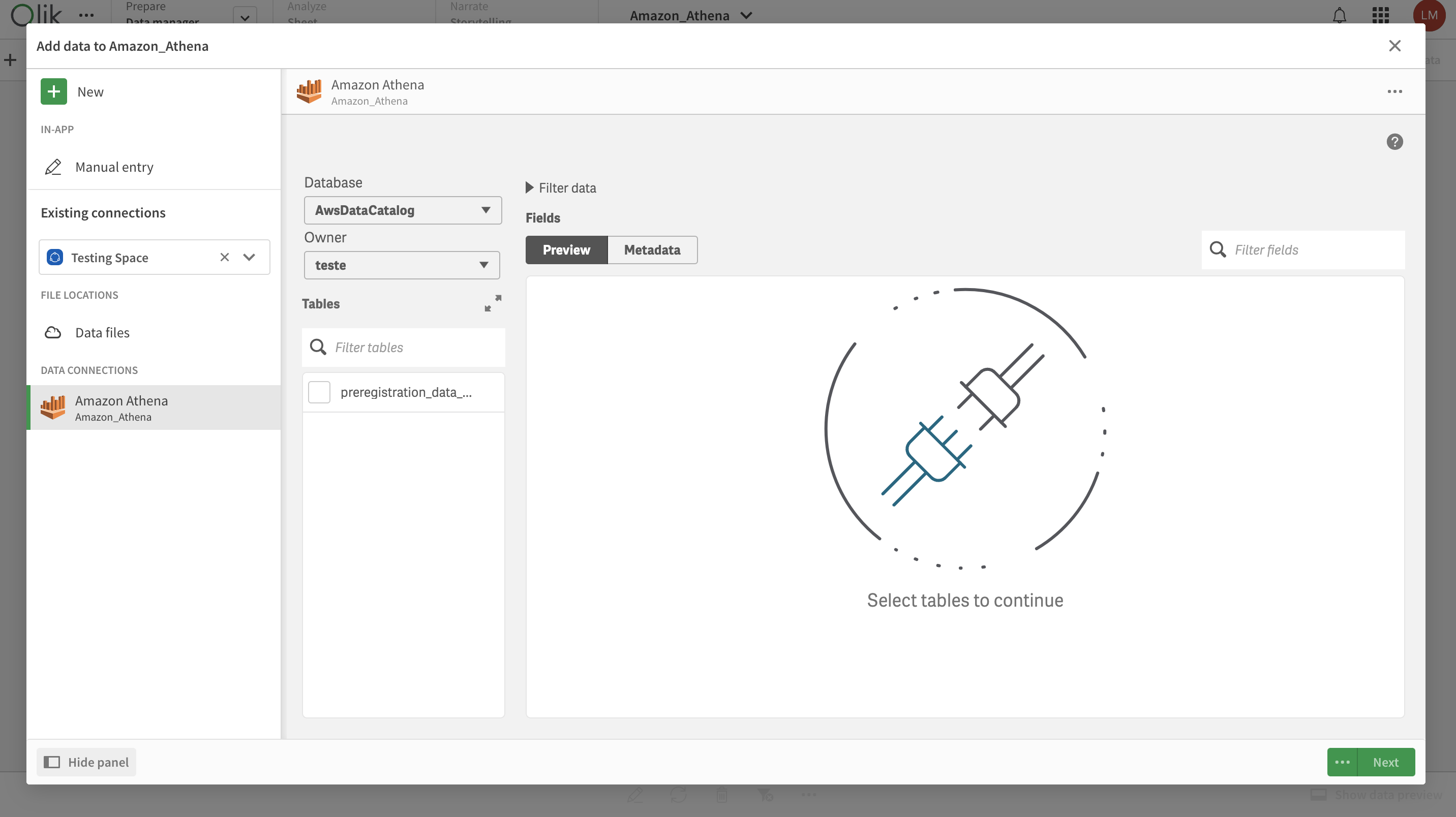
For more details, see the Qlik Sense Amazon Athena connector documentation.