


Configuring Gmail as a Destination
In the Destinations tab, click on the “Add destination” button located on the top right of your screen. Then, select the Gmail option from the list of connectors. Click Next and you’ll be prompted to add your access.1. Add account access
You’ll need to configure your Gmail destination settings:- Gmail Authorization: Authorize nekt with your Gmail account. Make sure you are doing it with the email address you want to use to send the email.
-
Recipients: The list of email addresses that should receive the email. It should be a comma-separated list such as
john.doe@example.com, jane.doe@gmail.comand so on. -
Email subject: The subject of the email. If you want to add a datestamp to the subject, please include the parameter
{datestamp}in brackets. With the Single record input table option enabled, you can also reference the record’s columns as{column_name}. -
Email body: The email body message to send. There are variables you can include in the email body that will be replaced by dynamic information during execution:
-
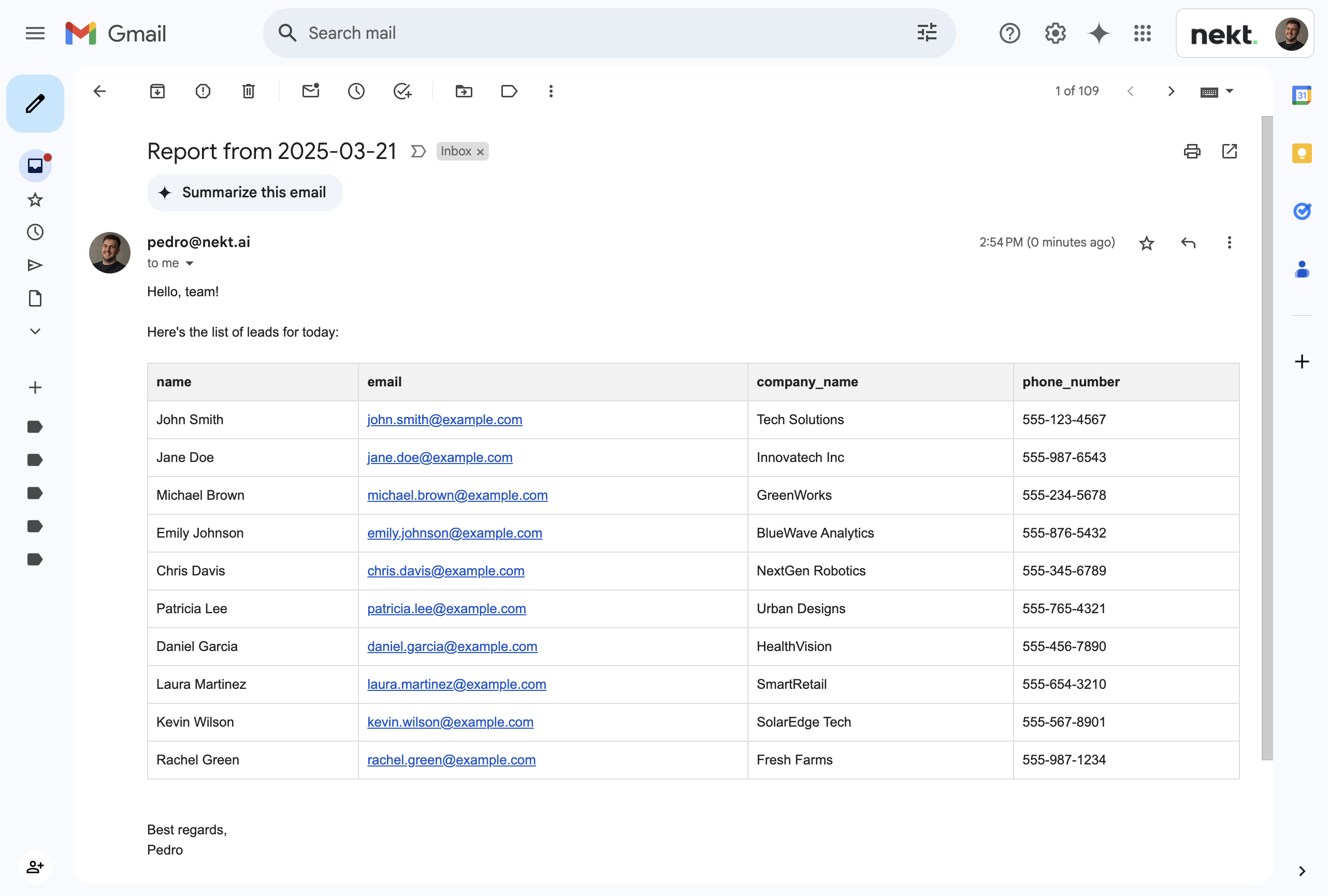
Data preview: This will include a preview of your data (max of 100 records) in the email body in a tabular form. This is useful to give the recipients a quick glimpse on the data. In order to use data, include the variable
{data_preview}in your email body. -
Datestamp: This will include the current date timestamp in the format YYYY-MM-DD in the email body. Useful if you want to add a date reference to the email body. To use that include the variable
{datestamp}in your email body. -
Column reference: With the Single record input table option enabled, you can reference the record’s columns as
{column_name}in your email body.
-
Data preview: This will include a preview of your data (max of 100 records) in the email body in a tabular form. This is useful to give the recipients a quick glimpse on the data. In order to use data, include the variable
- Maximum preview size: The total number of rows to preview in the message body. Maximum is 100.
- Send email with empty data: Whether the email should be sent in case the input table is empty (due to filtering or other conditions). If this option is True, then you have the option to specify a different email body to be used in such cases.
-
Single record input table: (Advanced) In case your input table has a single record, you can reference its columns in the subject, the body message and the CSV filename using this notation
{column_name}.
- Attach data as CSV: When enabled, the full dataset will be attached to the email as a CSV file. This is useful when you need to share the complete data with recipients, not just a preview.
-
CSV filename: The filename for the CSV attachment. You can use the
{datestamp}placeholder to include the current date in the filename. For example:report_{datestamp}.csvwould generatereport_2024-01-15.csv. With the Single record input table option enabled, you can also reference the record’s columns as{column_name}.
When CSV attachment is enabled, all records from your data source will be included in the attachment, regardless of the preview size setting. The data preview in the email body and the CSV attachment work independently.
{datestamp} in the subject and {data_preview} in the email body:
2. Select your data to send
The next step is letting us know which data you want to attach to the email. Select the layer and then the desired table. Click Next.3. Configure data destination
Describe your destination for easy identification within your organization. You can inform things like what data it sends, to which team it belongs, etc. To define your Trigger, consider how often you want this email to be sent to the list of recipients. This decision usually depends on how frequently you need the new table data updated (every day, once a week, only at specific times, etc.). Click Done.4. Check your new destination
Once completed, you’ll receive confirmation that your new destination is set up! You can view your new destination on the Destinations page. Now, for the email to be actually sent, you have to wait for the pipeline to run. You can monitor it on the Destinations page to see its execution and completion. If needed, manually trigger the pipeline by clicking on the refresh icon. Once executed, your email should be sent.Implementation Notes
Email Delivery
- The connector uses Gmail’s SMTP service to send emails
- Emails with attachments use multipart MIME formatting to properly handle both text content and file attachments
- All email content is properly encoded to ensure compatibility across different email clients
Data Handling
- The data preview in the email body is limited to the configured maximum preview size
- CSV attachments contain the complete dataset regardless of preview size settings
- Dynamic variables (
{datestamp},{data_preview}) are processed at runtime during email generation - System variables (
{datestamp},{data_preview}) take precedence over column names if there is a naming collision - When the Single record input table option is enabled:
- The pipeline will fail and stop execution if the input table contains more than one record
- If the input table is empty, any
{column_name}reference is left unresolved and sent exactly as written - Line breaks in column values are collapsed into spaces to ensure email headers (like the Subject) remain valid and serialize correctly
- Any slashes (
/or\) in column values used for the CSV filename are converted to dashes (-) to prevent directory path errors
Authentication & Security
- OAuth2 authentication ensures secure access to Gmail services
- Email credentials and recipient lists are stored securely
- All data transmission uses encrypted connections