


Configuring Firestore as a Source
In the Sources tab, click on the “Add source” button located on the top right of your screen. Then, select the Firestore option from the list of connectors. Click Next and you’ll be prompted to add your access.1. Add account access
Check the instructions next to each configuration option to discover where you can find the required parameters for the connection. These are the available configurations for this source:- Credentials file: The credentials file for the service account linked to your Firestore project. Make sure the account has access to perform read operations on your collections. You should upload the JSON credentials file directly.
- Database name: The database name to extract data from. If not provided, the default database for the account will be used.
- Batch size: The number of documents to process in a single stream. Keep in mind higher batch sizes may cause timeouts when reading the document stream.
- Subcollection extraction mode: Determines how subcollections are handled by the connector.
- Nested documents: Recursively fetches subcollections for each parent collection, embedding subcollections within parent documents.
- Collection group: Extracts subcollections as separate streams, using Collection Group queries to speed up the extraction process.
- None: Ignores subcollections.
- Filter collections by name: This parameter allows you to filter only specific collections from the database. This is useful to speed up the discovery process when you’re interested in just a few collections, but your database has a lot of available ones to be discovered.
- Filter subcollections by name: Filter nested subcollections to avoid extracting unnecessary data. This is useful when you just need a subset of subcollections from a given document. This configuration depends on the
Subcollection extraction modechosen.- For
Nested documentsmode, you should use the notationcollection.sub_collection, for exampleconversations.messagesif you want to extract the subcollectionmessagesfrom the top-level collectionconversations. A wildcard is also accepted if you want to get all nested subcollections, for exampleconversations.messages.*will extract all nested subcollections underconversations -> messages. - For
Collection groupmode you can simply enter the name of each subcollection you want to extract. Please note subcollections with the same name under different root level collections will be mapped to the same stream. It’s a good practice to use unique names for subcollections to avoid this behavior.
- For
- Start date: Starting point for incremental syncs (ISO-8601 format).
2. Select streams
The next step is letting us know which streams you want to bring. Each stream available in that list corresponds to a top-level collection or subcollection on Firestore. You can select entire groups of streams or only a subset of them.Tip: The stream can be found more easily by typing its name.Select the streams and click Next.
3. Configure data streams
Customize how you want your data to appear in your catalog. Select the desired layer where the data will be placed, a folder to organize it inside the layer, a name for each table (which will contain the fetched data) and the type of sync.- Layer: choose between the existing layers on your catalog. This is where you will find your new extracted tables as the extraction runs successfully.
- Folder: a folder can be created inside the selected layer to group all tables being created from this new data source.
- Table name: we suggest the same name as the collection, but feel free to customize it. You have the option to add a prefix to all tables at once and make this process faster!
- Sync Type: you can choose between INCREMENTAL and FULL_TABLE.
- Incremental: every time the extraction happens, we’ll get only the new data, which is good if, for example, you want to keep every record ever fetched. In order for that to work, you need to have a valid datetime or integer incremental field inside your documents.
- Full table: every time the extraction happens, we’ll get the current state of the data, which is good if, for example, you don’t want to have deleted data in your catalog. However, keep in mind this increases resource usage such as computing time and storage.
4. Configure data source
Describe your data source for easy identification within your organization, not exceeding 140 characters. To define your Trigger, consider how often you want data to be extracted from this source. This decision usually depends on how frequently you need the new table data updated (every day, once a week, or only at specific times). Optionally, you can define some additional settings:- Configure Delta Log Retention and determine for how long we should store old states of this table as it gets updated. Read more about this resource here.
- Determine when to execute an Additional Full Sync. This will complement the incremental data extractions, ensuring that your data is completely synchronized with your source every once in a while.
5. Check your new source
You can view your new source on the Sources page. If needed, manually trigger the source extraction by clicking on the arrow button. Once executed, your data will appear in your Catalog.Streams and Fields
Firestore streams correspond dynamically to the collections and subcollections present in your database.Firestore Collections
Firestore Collections
All extracted streams have the following standard properties:
Implementation Notes
Subcollections
The connector supports extracting subcollections. When configuring it, you need to explicitly specify which ones you want to extract. The most efficient way for extracting subcollections is by using Collection Groups, which allows retrieving subcollections from different parent documents in a single query. Imagine the following structure: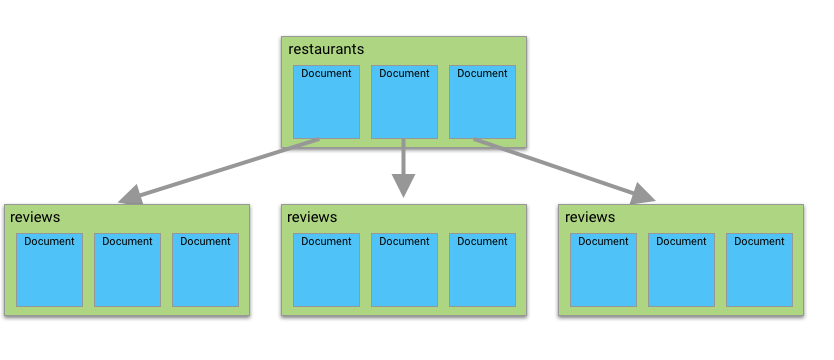
Incremental vs Full Sync
Incremental sync is allowed for both collections and subcollections when using Collection group queries.Best Practices
-
Configure indexes for Collection Groups: Set up indexes for using
Collection groupqueries for subcollections whenever possible. This significantly improves extraction time, saving time and resources.Step-by-step to configure a collection group index on Firestore:- In your Firestore console, click on the
Indexestab. - Select the
Single fieldtab. - On the
Exemptionssection click onAdd exemption. - On the
Collection IDfield, enter the name of the subcollection. - On the
Field pathfield, enter the name of the attribute you want to use for the incremental index (generally a timestamp or date field). - In
Query scopemark theCollection groupcheckbox. - Click
Save.
- In your Firestore console, click on the
- Consistent incremental keys: If configuring your streams as incremental, make sure to include a date-time field that indicates when the document was last updated. This is necessary to ensure data integrity and consistency.
- Explicit filtering: Be explicit when defining filters for collections and subcollections to avoid extracting data that won’t be useful for you. This helps reduce costs from both the cloud resources needed to perform the data extraction and Firestore itself. You can always add more streams later if needed.
Skills for agents
Download Firestore skills file
Firestore connector documentation as plain markdown, for use in AI agent contexts.